
1. Scenarios
"Sticky" is a relatively old interaction method that has been used on PC pages for many years, as shown below:
[caption id="attachment_1210" align="alignnone" width="539"]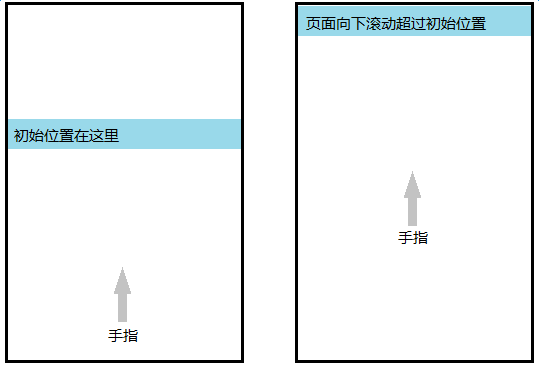 sticky[/caption]
The initial position of a sticky element is generally near the top of the page but at a certain distance from it. This area usually holds the most eye-catching elements, such as a Banner image. When the page scrolls down past the initial position of the sticky element, the element is fixed to the top.
Elements required to be sticky are generally secondary navigation bars, search boxes, article title bars (h1), table headers (thead), tab bars, etc. Their common characteristic is that they are relatively important in content or function but are not the most critical elements (the most important elements are usually fixed to the top of the page from the start, like navbar-fixed-top).
2. PC Solutions
Perform an action when the page scrolls to a certain position.
The "Back to Top" button works the same way: when the page scrolls down more than 150px, the button is displayed; otherwise, it is hidden.
So the implementation idea is to listen to the scroll event:
var stickyEl = document.querySelector('.sticky');
var stickyT = stickyEl.offsetTop;
window.onscroll = function(e) {
    var scrollT = document.body.scrollTop;
    // console.log(scrollT, stickyT);
    if (scrollT > stickyT) {
        stickyEl.classList.add('fixed-top');
    }
    else {
        stickyEl.classList.remove('fixed-top');
    }
};
This is exactly the same as the implementation of "Back to Top." The effect seems okay, but you will soon notice that when scrolling to the threshold position stickyT, the page jitters and jumps up a bit. This is because stickyEl is fixed out of the document flow, and the elements below it move up to occupy its original space, causing the jitter.
We want it to be smooth without jittering, so we need a placeholder to hold stickyEl's original position:
var stickyEl = document.querySelector('.sticky');

// Placeholder to hold the position
var stickyHolder = document.createElement('div');
var rect = stickyEl.getBoundingClientRect();
// console.log(rect);
stickyEl.parentNode.replaceChild(stickyHolder, stickyEl);
stickyHolder.appendChild(stickyEl);
stickyHolder.style.height = rect.height + 'px';

var stickyT = stickyEl.offsetTop;
window.onscroll = function(e) {
    var scrollT = document.body.scrollTop;
    // console.log(scrollT, stickyT);
    if (scrollT > stickyT) {
        stickyEl.classList.add('fixed-top');
    }
    else {
        stickyEl.classList.remove('fixed-top');
    }
};
By wrapping the sticky element with a placeholder of the same height, when stickyEl is set to fixed at the threshold, the space is maintained by stickyHolder. The elements below cannot push up, and the page no longer jitters.
There are still some issues with this approach. If the elements above the sticky element load slowly, the obtained stickyT will be smaller than the actual value, or even 0 (if there is a large Banner image above). Therefore, it needs to be used with a default image placeholder (base64) or by setting a min-height temporarily and then correcting stickyT when the image above triggers onload.
3. Mobile Solutions
In principle, the solution can be ported directly. It works on Android 4.0+, but almost all iOS devices fail.
Android scroll
The scroll event in Android 4.0 is not very real-time (it feels like it has built-in throttling), but since Android 4.1, the scroll event is almost the same as on PC.
The Android browser in Ice Cream Sandwich fires the event but doesn’t feel very responsive and only sporadically re-paints the DOM to move the blue box. Luckily, Jelly Bean’s Android browser handles this example perfectly; everything is updated and rendered smoothly as the user scrolls.
(Cited from Reference 1)
As long as the page is scrolling, the scroll event fires constantly, requiring manual throttling, which is exactly the effect we need. If scroll itself had built-in throttling, it would be easy to miss the threshold check, causing the sticky element to "jump," resulting in a non-smooth experience.
iOS scroll
Safari on iOS < 8, including UIWebView, has significant restrictions on the scroll event:
Finger swipes screen -> Scrolling -> Finger lifts -> Inertial scrolling -> Scrolling stops
During the entire process, the scroll event is triggered only once when the scrolling stops. In other words, scroll on iOS below version 8 becomes scrollend. The method of listening to scrolling to determine position fails completely. The smooth sticky effect turns into the sticky element jumping to the target position only after scrolling past the threshold and stopping. The experience is very poor and unbearable.
Since scroll cannot be used, there are some alternative ideas, such as using timers to read scrollTop, touchmove, iscroll, etc.
A senior developer has performed detailed tests; see Reference 1.
Timers do not execute while the finger is on the screen. touchmove triggers frequently enough to get scrollTop, but after touchend, during the inertial scrolling phase, no events are available, and scrollTop cannot be obtained. It is difficult to predict this inertial scrolling distance (decelerated motion), and it's uncertain whether the calculation method for this distance is the same across different iOS versions.
Fake scrolling like iscroll can naturally obtain the scroll position in real-time. iScroll has a dedicated version for this:
iscroll-probe.js, probing the current scroll position is a demanding task, that's why I decided to build a dedicated version for it. If you need to know the scrolling position at any given time, this is the iScroll for you. (I'm making some more tests, this might end up in the regular iscroll.js script, so keep an eye on it).
Safari and WKWebView on iOS 8+ can trigger scroll rapidly, regardless of whether the finger is on the screen and whether it's during inertial scrolling. However, in UIWebView on iOS 8+, the scroll restriction still exists.
If you need to support iOS < 8 devices and UIWebView on any iOS version, this path is blocked; forget about scroll.
sticky
Although the scroll solution doesn't work, iOS provides another way: position: sticky, which has been supported since iOS 6.1, while Chrome only supported it recently in version 56.
This CSS rule is specifically designed for stickiness. General usage:
.sticky {
    // Automatically sticks to the top when scrolled past the initial position
    position: -webkit-sticky;
    position: sticky;
    // Positioning when sticky
    top: 0;
    left: 0;
    // z-index higher than everything below it
    z-index: 9999;
}
When not scrolled past the initial position, it behaves similarly to position: relative (occupies space, !static can provide a positioning reference for descendants), but top and left have no effect.
When scrolled past the initial position, it behaves similarly to position: fixed: top and left take effect, fixing it to the visible area of the screen. However, the page will not jitter, and the original occupied space remains (it feels like it comes with a built-in placeholder).
The sticky effect is very smooth—even smoother than the Android scroll solution. However, the limitation is obvious: it is impossible to know the sticky state in real-time. Various effects related to this are restricted, such as a sticky tab list:
[caption id="attachment_1211" align="alignnone" width="255"]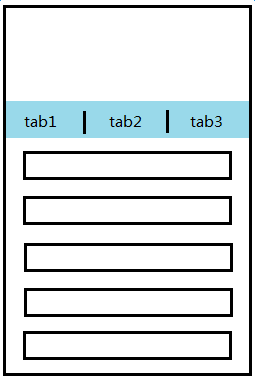 sticky-tab[/caption]
In non-sticky state, the list part can be swiped to scroll the page and transition to sticky state. Multiple tab lists switch seamlessly, and browsing states do not affect each other.
In sticky state, swiping the current tab list to the end scrolls the page and transitions back to non-sticky state.
That is, in non-sticky state, the tab list should not be scrollable (overflow-y: hidden); in sticky state, the tab list should be scrollable (overflow-y: auto).
However, iOS sticky is not controlled by us, and we cannot know the sticky state in real-time. If we want to know the sticky state, we go back to the original question: how to obtain the scrollbar position in real-time during page scrolling? CSS sticky cannot solve this problem.
I haven't found a perfect solution yet. The current solution is to sacrifice the independence of the tab browsing state, having multiple tabs share the body scrollbar and scrolling back to the previous position when switching tabs. This avoids determining the sticky state but sacrifices the perfect experience of seamless tab list switching.
If you have new ideas, good points, or mature solutions, please let me know. I'd be very grateful.
4. Online Demo
-
PC, Android 4.0+, and
WKWebViewsolution: http://www.ayqy.net/temp/sticky/sticky-pc.html -
iOS 6.1+ solution: http://www.ayqy.net/temp/sticky/sticky-ios.html
5. Summary
-
General element stickiness: Use the
scrollsolution for Android, with manual throttling within an acceptable range to improve performance. Use CSSstickyfor iOS. If you don't need to compatible with iOS < 8 andUIWebViewof any version, thescrollsolution can also be used. -
Sticky tab lists: No good solution yet; currently using the solution that sacrifices seamless switching.
Full-page iScroll is a risky solution. If the page is complex, do not try it lightly. Even if the page is currently simple, there's no guarantee it won't become complex in the future.
References
-
onscroll Event Issues on Mobile Browsers: A thorough test of the
scrollevent that saved many people a lot of time. -
Why the Scroll Event Change in iOS 8 is a Big Deal: Practical introduction to the changes after iOS 8 removed
scrollevent restrictions, also written by the aforementioned expert. -
javascript scroll event for iPhone/iPad?: Illustration of iOS
scrollevent restrictions. -
CSS “position: sticky” – Introduction and Polyfills: Polyfills are all for PC and not very useful here.
No comments yet. Be the first to share your thoughts.