
##I. Basic Canvas Usage##
canvas corresponds to Chinese "画布" (painting canvas), <canvas> is a new HTML5 element, supported by IE9+
The default size of canvas element is 300px * 150px, the simplest code will generate a transparent rectangular canvas, for example:
<canvas>
  Browser does not support canvas
</canvas>
If the browser supports it, then you won't see a 300px * 150px transparent block (because it's transparent, you can find it by inspecting elements). If the browser doesn't support it, then it will display replacement text: "Browser does not support canvas", such as IE8.
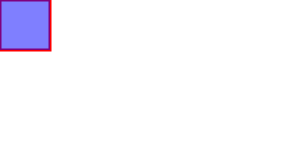
With the canvas, I really want to draw something. But for canvas, the easiest thing is to draw a hollow/solid rectangle, rather than drawing a straight line, for example:
<canvas id="my_canvas"> Browser does not support canvas </canvas>
<script type="text/javascript">
  var canvas = document.getElementById('my_canvas');
  if(canvas.getContext){
  var ctx = canvas.getContext('2d');//Get 2d context
  ctx.strokeStyle = '#f00';//Set border to red
  ctx.lineWidth = 3;//Set line width to 3px
  ctx.fillStyle = 'rgba(0, 0, 255, 0.5)';//Fill semi-transparent blue
  ctx.strokeRect(0, 0, 50, 50);//Stroke
  ctx.fillRect(0, 0, 50, 50);//Fill
  }
</script>
The result looks like this:
##II. Drawing Squares, Circles, and Lines##
Rectangles have been drawn above, using the context object's stroke and fill methods, besides these there's another rectangle-related method: clearRect() parameters have the same meaning, the effect is to hollow out a rectangular block (fill specified area with transparent color)
Drawing circles is relatively more troublesome, for example, to draw a circle with center at (30, 30) and radius 20:
ctx.beginPath();//Create path
ctx.arc(30,30,20,0,Math.PI*2,true);//Set arc path
ctx.closePath();//Close path
ctx.stroke();//Stroke
ctx.fill();//Fill
The arc(x, y, radius, startAngle, endAngle, counterclockwise) method is used to draw arcs, meaning with (x, y) as center, radius as radius, start angle and end angle are startAngle and endAngle respectively, the last parameter indicates whether the previous two angle values are calculated clockwise or counterclockwise, false means clockwise.
Drawing lines is simpler than drawing circles (draw a 50px horizontal line from (30, 30)):
ctx.beginPath();//Create path
ctx.moveTo(30, 30);//Move starting point to (30, 30)
ctx.lineTo(80, 30);//Set path to connect two points
ctx.closePath();//Close path
ctx.stroke();//Draw
Being able to draw lines and arcs, drawing triangles and pentagons is no problem, besides the path methods used above, there are also the following methods:
-
arcTo(x1, y1, x2, y2, radius): Draw an arc from the previous point to (x2, y2), passing through (x1, y1) with the given radius
-
bezierCurveTo(c1x, c1y, c2x, c2y, x, y): Bezier curve, draw a curve from the previous point to (x, y), with (c1x, c1y) and (c2x, c2y) as control points
-
quadraticCurveTo(cx, cy, x, y): Quadratic Bezier curve, draw a quadratic curve from the previous point to (x, y), with (cx, cy) as control point
-
rect(x, y, width, height): Draw rectangular path
After setting up the path, you can use fill() method to fill or use stroke() method to stroke, you can also use clip() method to limit the following drawing (equivalent to PS selection, details see W3School)
##III. Drawing Images##
This functionality is undoubtedly the most important, simple graphics drawing is not very practical (try drawing a portrait with coordinates if you don't believe me)
###1. Importing Images##
- Get a reference pointing to HTMLImageElement or another canvas element as source, you can also use images by providing a URL
Image source can be reference to img, video, canvas elements, of course, it can also be newly created new Image(), but note that you should reference it in the new Image object's load event handler, otherwise because the image hasn't finished loading, some browsers may error. Of course, you can also use Base64 encoded image source.
- Use drawImage() function to draw the image onto the canvas
-
drawImage(image, x, y): Simple and clear good method
-
drawImage(image, x, y, width, height): Supports scaling
-
drawImage(image, sx, sy, sWidth, sHeight, dx, dy, dWidth, dHeight): Supports cropping (cut out a small part from large image, details see MDN)
###2. Exporting Images##
This is of course more important than image manipulation, after drawing on the canvas for so long, how to export it as an image
canvas.toDataURL(): Returns image URL, directly assign the URL to img's src and it can be displayed, it's just like a normal image address, use it however you want. But need to note:
-
Image cannot come from other domains, yes, that's right, cross-origin security restriction again, if from other domain, toDataURL() method will throw error
-
Note clearly that toDataURL method is canvas's, not the ctx context object's that we've been using above, and the method name's capitalization is also quite special
###3. Image Manipulation##
canvas's most powerful feature is obtaining image data, we can obtain the color value of every point on the canvas, can you handle it without canvas? No. So simple image processing can now be done with js, without the participation of backend functions.
For example, do a simple color inversion on the screenshot from above:
var canvas = document.getElementById('my_canvas');
if(canvas.getContext){
    var ctx = canvas.getContext('2d');//Get 2d context
    //Draw image
    var img = document.images[0];
    ctx.drawImage(img, 0, 0);
    //Get ImageData
    var imgData = ctx.getImageData(0, 0, canvas.width, canvas.height);
    var data = imgData.data;//Get rgba (ImageData's data property is rgba value of each pixel)
    //Invert color
    var r, g, b, a;
    for(var i = 0, len = data.length;i < len; i+=4){
        //Get color
            r = data[i];
            g = data[i+1];
            b = data[i+2];
            //a = data[i+3];//Inversion doesn't need transparency
            //Invert color
            data[i] = 255 - r;
            data[i+1] = 255 - g;
            data[i+2] = 255 - b;
    }

    imgData.data = data;//Write back image data
    ctx.putImageData(imgData, 0, 0);//Display result
}
The processing effect is still great, as shown below:

Need to note a small problem, Chrome doesn't allow using drawImage to draw local images, so the result above is from FF, encountered similar problem when testing Ajax, FF generally doesn't restrict local resources when limiting cross-origin security, while Chrome does, for same-origin resources on server there's no such difference.
##IV. More Canvas Features##
Gradients, pattern fills, line control, shadows, rotation, transformation, scaling, compositing, animation and more content see reference material MDN tutorial
###Reference Materials###
-
MDN Tutorial: A very good tutorial
-
"JavaScript Advanced Programming": A good book reluctant to return to the library
No comments yet. Be the first to share your thoughts.