
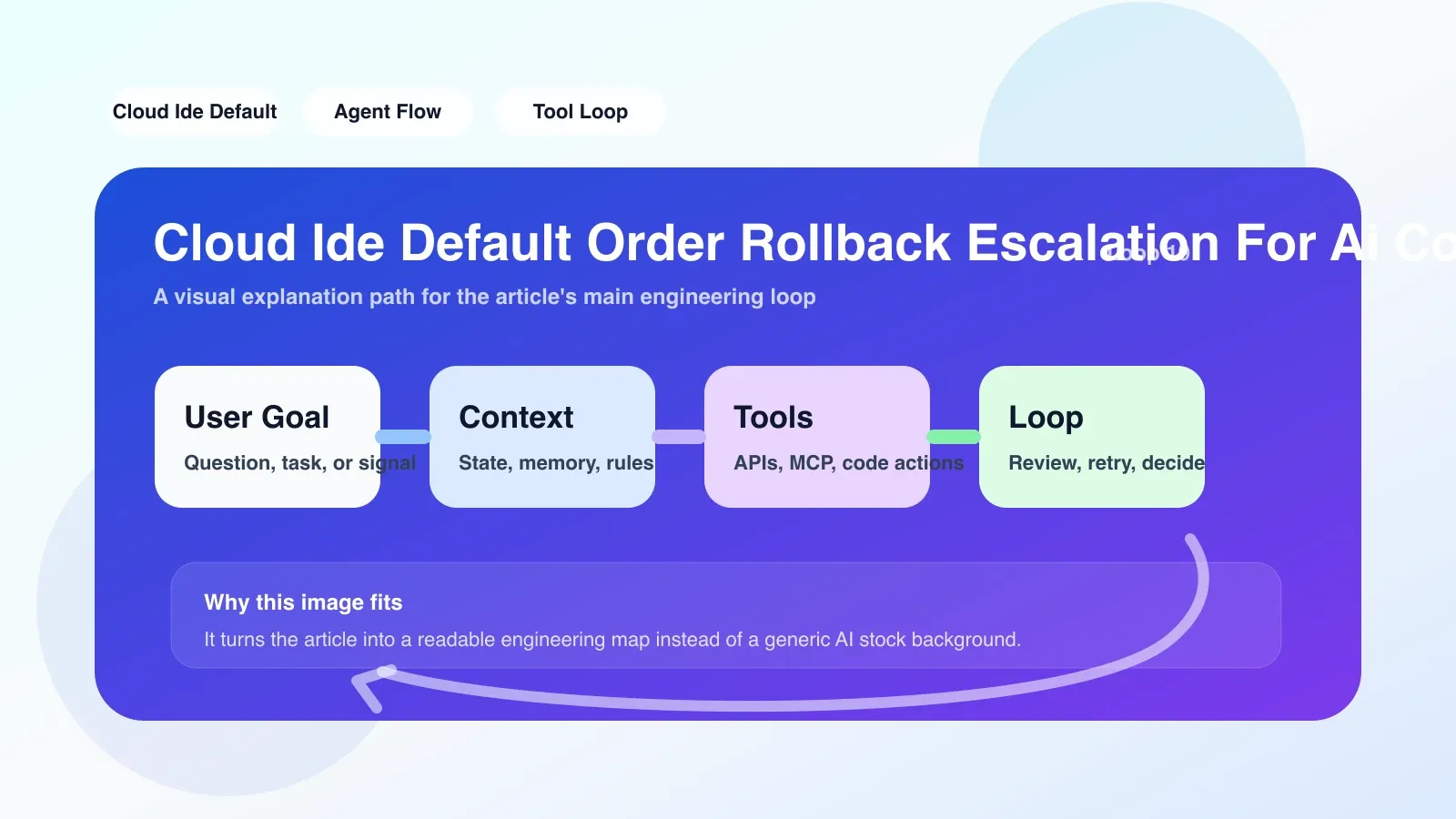
Why does the default order of operations crash your AI programming environment?
Scenario: Your team is using Cloud IDE for collaborative development of the AI model. An agent misoperation causes key configuration files to be overwritten. You try to roll back to the previous version, only to find that the default rollback sequence puts the IDE into an error state. Not only does it fail to recover, but you also lose the last two hours of work. The root cause of this problem is not the tool itself, but the team's failure to understand the default operation sequence and rollback upgrade mechanism of Cloud IDE.
The default sequence for Cloud IDE usually refers to the chain of steps from launching, connecting, loading the workspace, applying configuration, and running the agent. Every link has dependencies: if a step goes wrong and there is no correct rollback upgrade strategy, the entire environment will be stuck. For the AI coding team, the problem is even more serious, because the agent may modify the code in parallel, trigger builds, or mistakenly change IDE settings. The disorder will cause cascading failures.
Three key pitfalls of default order
The first pitfall: conflict between dependency order and parallel operations
The default order is linear: first load the workspace configuration, then start the terminal, and finally run the agent. However, if the agent modifies the dependency file before the configuration is loaded, the rollback will fail due to version conflicts. For example, a team uses codex to automatically generate code, and the agent modifies requirements.txt while installing new libraries. The IDE's rollback sequence restores the configuration file first, but cannot process the installed dependencies, resulting in an inconsistent environment.
Second Pitfall: Ignoring User State on Rollback
Cloud IDE's default rollback only overwrites the file system and does not restore the terminal session, environment variables, or agent context. For example, if the agent modifies the environment variable API_KEY during operation, the file is restored after rollback, but the current session still uses the old variable, and subsequent agent tasks directly report an error. This situation will not trigger automatic escalation because the system considers that the configuration has been rolled back.
The third trap: the upgrade mechanism lacks manual confirmation
When a failure requires escalation, the default behavior is often to silently retry or automatically switch backups without notifying team members. The result is that while one person is fixing it manually, another person is still relying on the wrong rollback state, causing a collaboration conflict. For example, member A rolls back the code, and member B pulls a new commit at the same time. After the version is overwritten, it can no longer be restored to the original state.
Set up the rollback upgrade mechanism: four steps of practical operation
To avoid the above problems, you need to follow these four steps to set up a rollback upgrade strategy. All steps are based on real team scenarios and can be executed immediately.
Step 1: Define the rollback unit and sequence
The default order is to roll back the entire workspace, which will lose small changes. A better approach is fine-grained rollback: file level, terminal level, agent context level.
- File-level rollback: Use the built-in snapshot of Git or IDE to roll back only the files modified by the agent.
- Terminal-level recovery: Record the command history and environment variables of each terminal session, and restore it to the pre-failure state during rollback.
- Context-level cleanup: The agent's temporary context (such as conversation history) needs to be rolled back independently to avoid polluting subsequent requests.
During actual execution, each rollback unit is marked with a version number. For example, if you encounter a configuration conflict, first record the current agent context index, then roll back the file separately, and finally restore the terminal variables.
Step 2: Configure fault upgrade trigger
Do not rely on automatic system upgrades. Set clear upgrade conditions:
- Retry Threshold: The same error still fails after 3 retries and must be escalated to manual.
- Scope of Impact: If the fault affects more than two files or affects more than 2 steps in the agent chain, the severity level is automatically marked.
- Time Sensitivity: Failure not fixed within 5 minutes of occurrence, escalate to team channel instead of continuing to try.
Step 3: Create a rollback and upgrade checklist
The following checks are automatically performed when each cloud IDE instance starts:
- Confirm whether the rollback order is according to the priority of File→Terminal→Context.
- Test whether upgrade notifications can be sent to team communication tools (such as Slack).
- Verify that the backed up agent context can be restored independently.
The actual team's approach is to write a script that runs when the IDE starts and prints the current version number and rollback status. If the status is abnormal, a warning is issued immediately.
Step 4: Regularly practice the recovery process
Create a recovery template that contains the following content:
- Standard rollback command (for codex environments, keep 10 version histories). -Upgrade contact list.
- Fallback in case of rollback failure (see below).
Simulate a failure every two weeks: deliberately let the agent modify key files, and then perform a rollback upgrade process. Record failure points and improve.
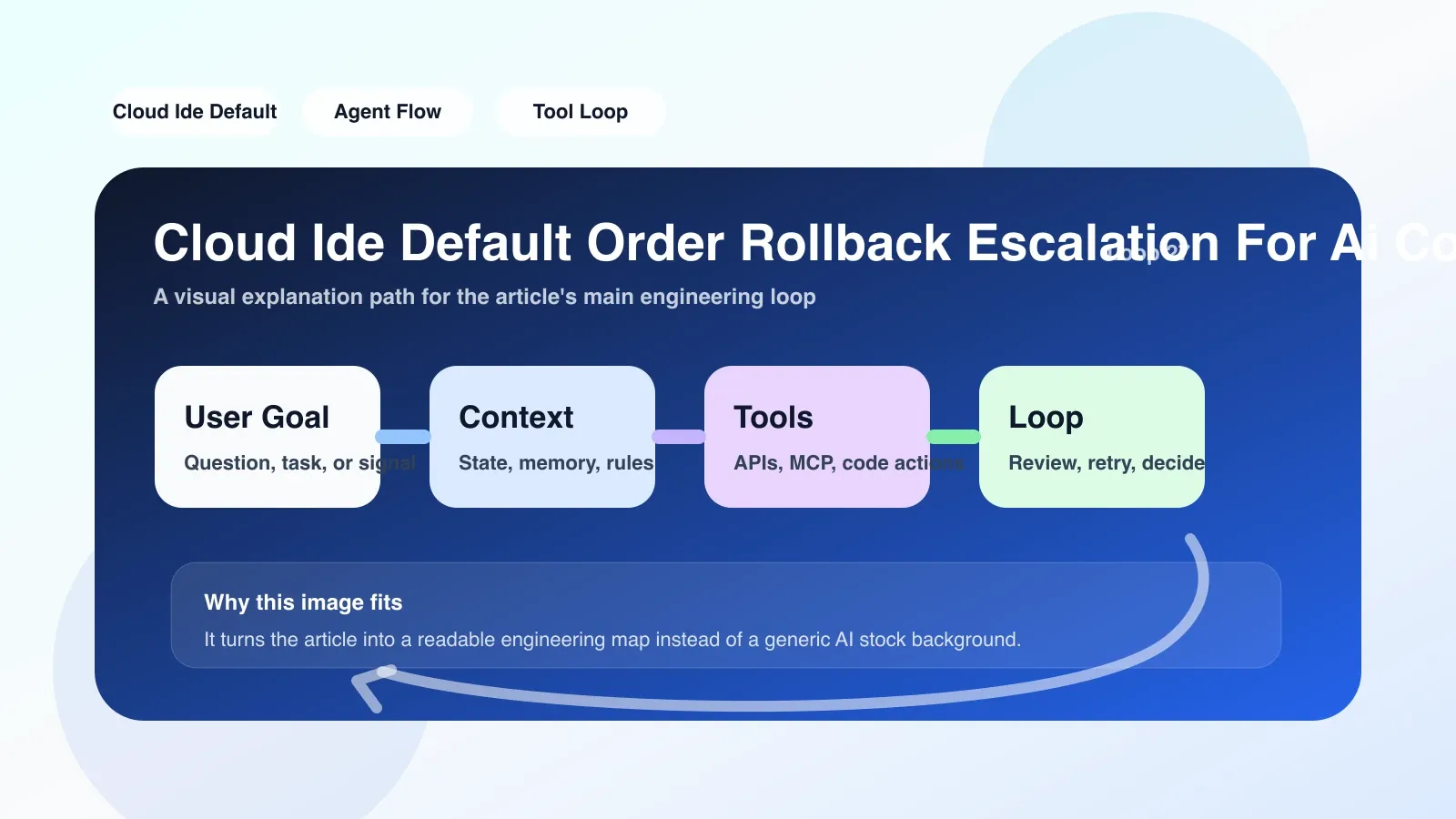
The most likely failure scenarios and backup plans
The most likely failure is parallel operation conflicts: two agents modify the same file at the same time, or one agent starts a new task during the rollback process. A rollback in this case would get into a deadlock because the system is not sure which version to trust.
Alternate plan: Interrupt all agent activities and force rollback to the last full backup point. Full backup is not a default feature and requires additional configuration: a snapshot of the IDE status is automatically created every hour, including all files and terminal records. When a conflict occurs, incremental recovery is abandoned and full restoration is performed directly.
Another failure point is that the upgrade mechanism is ignored: after the team receives the upgrade notification, no one confirms the processing. By default upgrades are sent repeatedly, but after a while notifications are treated as noise. The solution is that the escalation requires manual confirmation to stop, otherwise it will continue to escalate to a higher level (such as a phone call).
FAQ
**Q: Is this mechanism suitable for small teams? **
Suitable. Even for a AI development team of 2-3 people, it is recommended to configure a simple upgrade process. Use scripts to implement basic rollback unit definitions without the need for complex systems.
**Q: How to ensure that rollback does not affect the agent's response API status? **
When rolling back, the agent's response API session is not restored, only the files and environment are restored. The agent context is saved separately and the connection is reinitialized after rollback.
**Q: What should I do if the global recovery template conflicts with the settings of other teams? **
Each team uses an independent recovery template, and the templates are isolated through environment variables. When rolling back, it only affects the current workspace and does not involve other team configurations.
Next action
If you are still manually managing the recovery process of Cloud IDE and relying on luck every time it fails, this article has demonstrated the standard practices and common pitfalls. Next, write these steps into your team runbook. If you want to systematically master the AI agent engineering method, including more complex rollback upgrade scenarios and agent stability solutions, it is recommended to turn to a more systematic course.
No comments yet. Be the first to share your thoughts.