
Why It's Essential to Understand Computer Use Agents Now
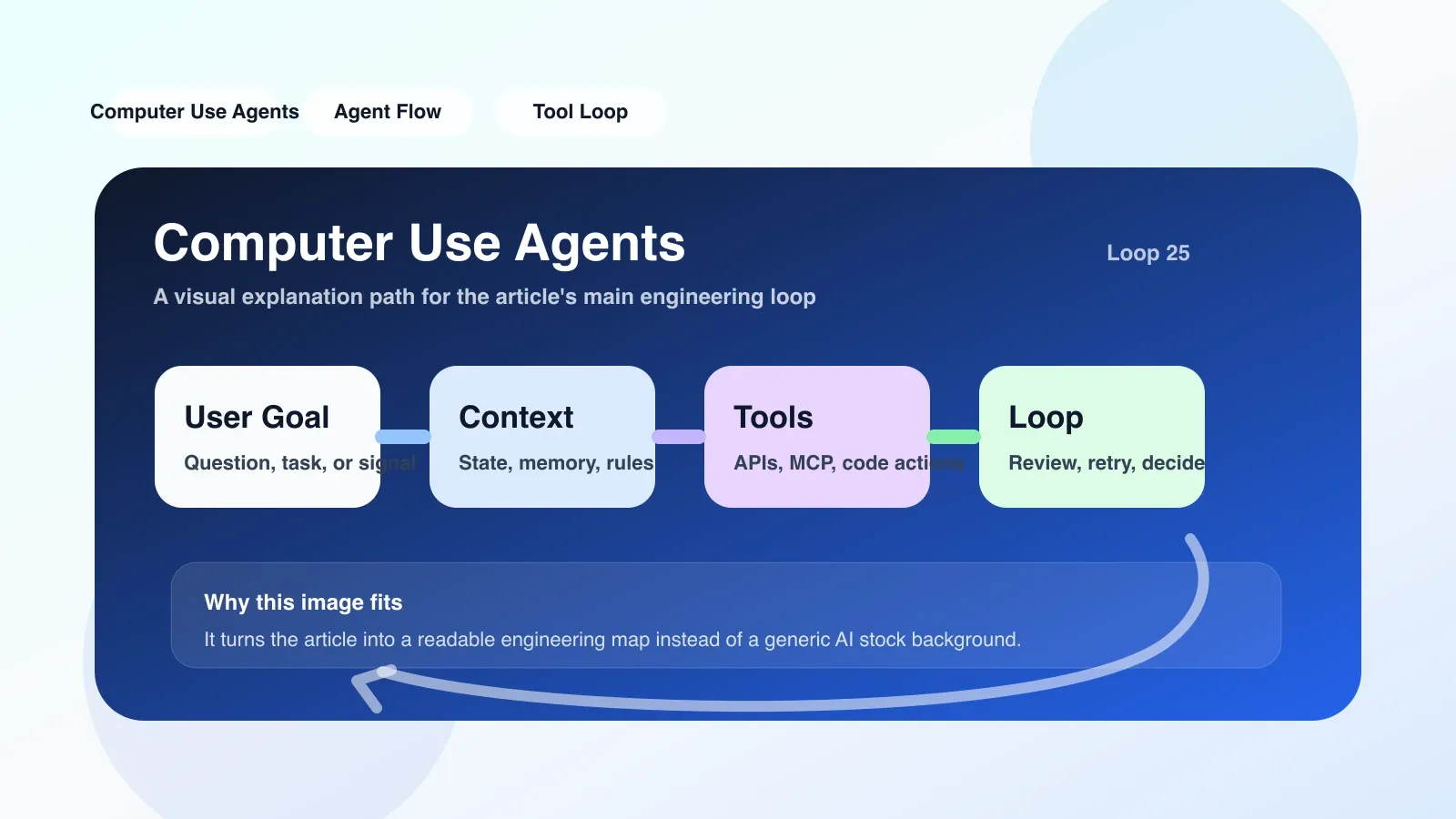
From late 2024 to 2025, AI Agents will evolve from "conversational assistants" to "operational agents." Computer Use Agents (CUA) are the most radical among them—they no longer just answer you, but operate your computer directly: open a browser, fill out forms, click buttons, read screenshots, scroll pages.
If you've ever maintained UI automation testing or written Playwright scripts, you'll immediately realize how "impossible" this is: traditional automation relies on fixed selectors and breaks once the DOM structure changes. CUA's approach is purely based on visual understanding + coordinate clicking, completely skipping the details of the frontend framework.
This round of hype is not hype. OpenAI released the Computer Use reference implementation in December 2024, and Anthropic Claude 3.5 Sonnet also has built-in similar capabilities. Hugging Face has seen a large number of desktop control fine-tuning models based on SmolVLM. The question is no longer "can it be done," but "how reliable it can be in production."
What engineering problems does it actually solve?
The most direct scenario is legacy system operation. Many internal enterprise systems lack API interfaces, only web or desktop GUIs. Traditional solutions either require writing fragile Selenium scripts or hiring people to operate manually. CUA provides a third path: describing the operation goal in natural language, with the Agent identifying elements through screenshots and performing click-and-input back-and-forth tasks.
For example, a typical "automatic entry of reimbursement process" scenario: a user says, "Open the OA system, log in, enter the reimbursement module, upload attachments and submit them," and CUA will complete sequentially. Each failed step (such as not finding the attachment button) would retry or cause an error.
Another practical scenario is multi-tool data transfer. For example, extracting tables from PDFs, pasting them into Excel, and then sending emails. Traditional methods require parsing PDF format before calling the Excel API, whereas CUA can copy and paste like a human.
The Most Likely Places to Fail
1. Screen resolution and layout changes
If you change monitors or resize windows, the screenshots and coordinates seen by CUA will deviate from the distribution of training data. The same button is positioned differently at 1920x1080 and 2560x1440. This is no small issue — I have seen a CUA click three buttons wrong on a 4K screen because the coordinate shifts were 30 pixels.
2. Modal dialog boxes and unexpected pop-ups
The browser suddenly pops up a "browser crash" dialog box, the system prompts "Update available," or a permission request pop-up...... These are handled instantly when manually operated, but for CUA, it may be blocked by pop-ups blocking the target button, then falling into a loop of "clicking → popup→ clicking → new popup again."
3. Operational speed conflicts with reliability
To ensure stable screenshots, CUA needs to wait for the image to freeze after each operation, then capture a new frame. This results in a simple operation (clicking → menu → selecting one) may take 5-8 seconds. If the chain of operations has 20 steps, the delay can reach the minute-level level. Users often wait 30 seconds before manually taking over.
4. Limited space for movement
Currently, CUA can basically only be implemented with: clicking, dragging, keyboard input, and mouse wheel. It cannot identify "who the current logged-in user is" or "whether file uploads are blocked by system policies." When encountering dialog boxes like insufficient permissions or file overwrite prompts, the Agent cannot understand the meaning of the English message and will only mechanically click "Cancel" or "OK."
If you want to implement now, what is the first step?
Don't start with critical tasks. Select a high-frequency but low-risk script, such as automatically generating and sending weekly report screenshots.
Specific steps:
- Fixed Environment: Run CUA on a virtual machine or Docker container to ensure consistent desktop resolution, browser version, and window layout at each startup. Use Wayland or Xvfb virtual displays to avoid physical environmental disturbances.
- Scripting operations rather than natural language: First, write a Python call in Claude or GPT, define each step with functions, rather than letting the agent operate freely. For example,
def click_login_button(): screenshot = capture(); button_region = find_by_text(screenshot, '登录'); mouse_click(button_region.center_x, button_region.center_y). - Add pop-up logic protection: Before each operation, take a full-screen screenshot and check for a dialog box (using OCR to identify fixed keywords such as 'Error', 'Warning', 'Update'). If it does, close it first.
- Set Timeout and Rollback: If a single-step operation is not completed within 10 seconds, it will be stopped and a snapshot will be recorded. If the overall mission fails, it reverts to the initial screenshot state.
Alternatives and When to Abandon CUA
If you have high stability requirements (financial, medical, production environments), CUA is currently not suitable as a main force. Alternatives:
- Systems with APIs prioritize API calls, even if it's wrapping shell scripts.
- For web applications, using Playwright's visual targeting (locator based on screenshot matching) is more controllable than CUA.
- If desktop operations are necessary, consider RPA tools (such as UiPath), which are based on control tree positioning and are less likely to break when windows change.
Signals to abandon CUA: single-step operation failure rate exceeds 15%, or users need to correct more than 3 times per day. At this point, traditional automation or manual handling should be reverted.
The next step is systematic learning
This article is just the first stop of the project. If you want to master agent design, context management, and MCP protocols and production-level loops from scratch, we recommend more systematic original paid articles and courses: you'll learn how to build recoverable long-chain operation agents, handle failed retries and state persistence, and know when to use simpler rules instead of agents.
No comments yet. Be the first to share your thoughts.