
Preface
There are animation performance optimization tips everywhere, such as:
-
Only allow changing
transformandopacity; don't touch other properties to avoid reflow -
Apply
transform: translate3d(0, 0, 0)orwill-change: transformto animated elements to enable hardware acceleration -
Try to use
fixedorabsolutepositioning for animated elements to avoid reflow -
Apply a higher
z-indexto animated elements to reduce the number of compositing layers -
... other potentially useful rules
The question is: we've already carefully followed these rules, so why do animations still stutter and drop frames? Can they still be optimized? Where should we start?
I. Hardware Acceleration is Non-Standard
The most important thing I'd like to tell you before we dive deep into GPU compositing is this: It's a giant hack. You won't find anything (at least for now) in the W3C's specifications about how compositing works, about how to explicitly put an element on a compositing layer or even about compositing itself. It's just an optimization that the browser applies to perform certain tasks and that each browser vendor implements in its own way.
In many cases, enabling hardware acceleration does bring significant performance improvements. However, this content is non-standard. The W3C has no specification detailing how it works. Therefore, using techniques (such as transform: translate3d(0, 0, 0)) to enable hardware acceleration is behavior outside the standard, which may bring performance improvements or may cause serious performance problems.
Perhaps it will become standardized in the future. Following the standard will definitely yield performance improvements. But until then, in addition to following various performance optimization principles, we must also consider the actual rendering flow and solve performance problems from first principles.
Hardware Acceleration
Hardware acceleration in CSS animations refers to GPU compositing. Instead of the browser directly generating image data for display through the CPU, it sends relevant layer data to the GPU. Since the GPU has inherent advantages in image data computation, this is considered acceleration.
So how does the browser render pages when hardware acceleration is unavailable?
Without hardware acceleration, browsers typically rely on the CPU to render web content. The general approach is to traverse these layers, sequentially paint the content of each layer onto an internal memory space (such as a bitmap), and finally display this internal representation. This approach is called software rendering.
II. The Special Nature of transform and opacity
Previously, animations were created by changing layout-related properties, for example:
@keyframes move {
   from { left: 30px; }
   to { left: 100px; }
}
For each frame of the animation, the browser must recalculate the element's shape and position (reflow), render the new state (repaint), and display it on the screen.
Full-page reflow and repaint sound slow. So what if we extract the animated element as the foreground, keep everything else as the unchanged background for each frame, only re-render the animated element, and then composite the foreground and background together? Would that be faster? Of course, because the GPU can quickly perform sub-pixel-level layer compositing.
However, the prerequisite for this approach is being able to divide the foreground and background layers based on what moves and what doesn't. If the animated element is affected by layout, or affects layout during its movement, this breaks the foreground-background boundary. So, does applying position: fixed | absolute guarantee it won't affect layout?
No, because left can accept percentage values and relative units (em, vw, etc.). The browser cannot be 100% certain that changes to this property are unrelated to layout. Therefore, it cannot simply divide foreground and background layers. For example:
@keyframes move {
   from { left: 30px; }
   to { left: 100%; }
}
However, the browser can be 100% certain that changes to transform and opacity are unrelated to layout, are not affected by layout, and their changes do not affect the existing layout. Therefore, the special nature of these two properties is:
-
does not affect the document's flow,
-
does not depend on the document's flow,
-
does not cause a repaint.
If something doesn't affect layout and isn't affected by layout, and its changes don't cause other parts to need repainting, then this thing can definitely be extracted as a separate layer and safely handed over to the GPU for processing, enjoying the benefits of hardware acceleration:
-
Delicate (GPU achieves sub-pixel precision, and it's not strenuous for the GPU)
-
Smooth (unaffected by other computation-intensive JS tasks; the animation is handed to the GPU, independent of the CPU)
III. The Cost of GPU Compositing
It might surprise you, but the GPU is a separate computer. That's right: An essential part of every modern device is actually a standalone unit with its own processors and its own memory- and data-processing models. And the browser, like any other app or game, has to talk with the GPU as it would with an external device.
The GPU is a separate component with its own processors, memory, and data processing model. This means that image data created by the CPU in memory cannot be directly shared with the GPU. It needs to be packaged and sent to the GPU, which can then execute the series of operations we expect. This process requires time, and packaging the data requires memory.
The required memory depends on:
-
The number of compositing layers
-
The size of the compositing layers
Size has a greater impact than quantity. For example:
.rect {
    width: 320px;
    height: 240px;
    background: #f00;
}
If this red block needs to be sent to the GPU, it requires: 320 × 240 × 3 = 230400B = 225KB of storage space (RGB requires 3 bytes). If the image contains transparency, it requires 320 × 240 × 4 = 307200B = 300KB.
Such a small red block requires 200-300KB. Pages often have dozens or hundreds of elements, and full-screen or half-screen elements are common. If all are treated as compositing layers and handed to the GPU, the memory consumption is imaginable. Therefore, some extreme hardware acceleration scenarios perform very poorly:
[caption id="attachment_1251" align="alignnone" width="303"]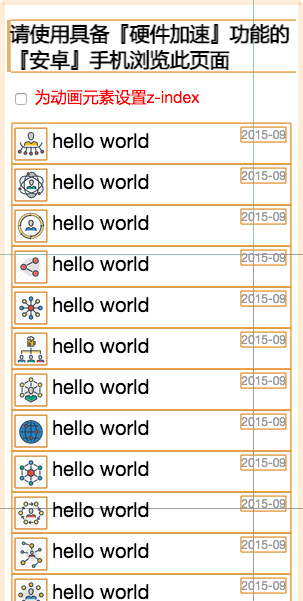 gpu compositing issue[/caption]
For a device with 1GB RAM, after removing 1/3 for the system and background processes, and another 1/3 for the browser and current page, only 200-300MB is actually available. If there are too many or too large compositing layers, memory will be quickly consumed, leading to frame drops (stuttering, flickering), and even browser/application crashes, which makes sense.
P.S. For details, see CSS3 Hardware Acceleration Also Has Pitfalls!!!
IV. Creating Compositing Layers
The browser creates compositing layers in certain situations, such as:
-
3D transforms: translate3d, translateZ, and so on;
-
<video>,<canvas>and<iframe>elements; -
animation of transform and opacity via Element.animate();
-
animation of transform and opacity via CSS transitions and animations;
-
position: fixed;
-
will-change;
-
filter;
-
... and more
There are many more. See the constants defined in CompositingReasons.h for details.
Most of these are what we expect, considered explicitly created compositing layers. However, compositing layers are also created in other situations:
- Elements located above a compositing layer will also be created as compositing layers (B's
z-indexis greater than A's; if A is animated, B will also be put into a separate compositing layer)
This is easy to understand. During A's animation, it may overlap with B and be obscured by B. Therefore, the GPU needs to animate layer A every frame and then composite it with layer B to get the correct result. So B must be put into a compositing layer regardless and handed to the GPU along with A.
Implicit creation of compositing layers is mainly for overlap considerations. If the browser is uncertain whether overlap will occur, it must put all uncertain elements into compositing layers. Therefore, from this perspective, the high z-index principle makes sense.
V. Pros and Cons of Hardware Acceleration
Pros
-
Animations are very smooth, capable of reaching 60fps
-
Animation execution occurs in a separate thread, unaffected by computation-intensive JS tasks
Cons
-
Extra repaint is required when putting elements into compositing layers, sometimes very slow (may require full-page repaint)
-
There is additional time cost for transferring compositing layer data to the GPU, depending on the number and size of compositing layers, which may cause flickering on mid-to-low-end devices
-
Each compositing layer consumes a portion of memory. Memory is expensive on mobile devices; excessive occupation can cause browser/application crashes
-
There is the problem of implicit compositing layers; if not careful, memory can skyrocket
-
Text becomes blurry; elements sometimes become distorted
The main problems are concentrated on memory consumption and repaint. Therefore, the goal of animation performance optimization is to reduce memory consumption and minimize repaint.
VI. Performance Optimization Tips
1. Avoid Implicit Compositing Layers as Much as Possible
Compositing layers directly affect repaint and memory consumption: creating a compositing layer at the start of an animation and deleting it at the end will cause repaint. When the animation starts, layer data must be sent to the GPU, and memory consumption is concentrated here. Two suggestions:
-
Apply a high
z-indexto animated elements, preferably making them direct children ofbody. For deeply nested animated elements, you can copy one to underbodysolely for implementing the animation effect. -
Apply
will-changeto animated elements. The browser will put these elements into compositing layers in advance, making the start/end of animations smoother. However, don't overuse it; remove it when not needed to reduce memory consumption.
2. Only Change transform and opacity
Use transform and opacity whenever possible. If they can't be used, find a way to use them. For example, background color gradients can be simulated using a pseudo-element's opacity animation layered on top; box-shadow animations can be simulated using a pseudo-element's opacity animation layered underneath. These tortuous implementation methods can bring significant performance improvements.
3. Reduce Compositing Layer Size
Display small elements enlarged. Reduce width and height, and let the GPU scale them up for display. There's no visual difference (often used for solid-color background elements; less important images can also have their dimensions compressed by 5% to 10%). For example:
<div id="a"></div>
<div id="b"></div>

<style>
#a, #b {
    will-change: transform;
    background-color: #f00;
}

#a {
    width: 100px;
    height: 100px;
}

#b {
    width: 10px;
    height: 10px;
    transform: scale(10);
}
</style>
The two red blocks displayed have no visual difference, but memory consumption is reduced by 90%.
4. Consider Child Element Animation vs. Container Animation
Container animations may have unnecessary memory consumption. For example, gaps between child elements are also sent to the GPU as valid data. Applying animations to individual child elements can avoid this memory consumption.
For example, with 12 rotating sun rays: rotating the container sends the entire container image to the GPU, while rotating the 12 rays individually removes the 11 gaps between rays, saving half the memory.
5. Pay Attention to the Number and Size of Compositing Layers Early
Focus on compositing layers from the beginning, especially implicitly created ones, to avoid late-stage optimization affecting layout.
Compositing layer size has a greater impact than quantity, but browsers do perform some optimization operations, integrating several compositing layers into one, called Layer Squashing. However, sometimes one large compositing layer consumes more memory than several small ones. If necessary, you can manually remove this optimization:
// Apply different translateZ to each element
translateZ(0.0001px), translateZ(0.0002px)
6. Don't Abuse Hardware Acceleration
Don't randomly add properties like transform: translateZ(0) or will-change: transform to force hardware acceleration when there's no need. GPU compositing has disadvantages and shortcomings, and it's non-standard behavior. In the best case, it brings significant performance improvements; in the worst case, it may crash the browser.
References
-
GPU Animation: Doing It Right: Read one article for a whole day
-
Understanding WebKit and Chromium: Chromium Hardware Accelerated Compositing
-
CSS animations and transitions performance: looking inside the browser: Chinese translation version see Deep Dive into Browser CSS Animation and Transition Performance
No comments yet. Be the first to share your thoughts.