
1. Goal
Bring Portability, Security, And Efficiency To Your Traditional Applications Without Changing Application Code
Enable traditional applications to gain portability, security, and high cost-effectiveness without changing source code
2. Features
Docker provides the ability to package and run applications in a loosely isolated environment (called a container), as well as tools and platforms to manage the container lifecycle
P.S. Docker is written in Go
Hybrid Cloud Portability
Package application source code together with its dependencies into a lightweight standalone container. Containers solve the works on my machine problem, as shown below:

(Image from Digging Into the "Works On My Machine" Problem)
This way, applications can run normally in new environments without worrying about differences between environments. After packaging, containers can be easily deployed to any environment with a simple Docker command. This enables rapid cloud migration, accelerates technology update cycles, or sudden migration to (public) clouds
Improved Application Security
Package existing applications into Docker containers to gain Docker's built-in security features without modifying source code. Docker provides container isolation, reduces the application's attack surface through restrictive configurations, and allows setting appropriate resource quotas to save host resources
Additionally, Docker provides a secure supply chain for creating, scanning, signing, sharing, and deploying container applications. For example, security scanning can provide a list of known vulnerabilities in all dependencies, and Docker administrators will be notified in periodic reports to fix related known public vulnerabilities. Containers can also be digitally signed, and Docker cluster verification can be enabled to ensure secure application transmission
CapEx and OpEx Benefits
Docker simplifies operations such as resource provisioning, deployment, and updates. Migrating to Docker containers can save deployment time
Structurally, Docker containers share the underlying operating system kernel, consuming fewer resources than virtual machines and being relatively lightweight. Container isolation prevents application conflicts, allowing IT administrators to increase the load density of existing infrastructure and optimize the utilization of existing virtual machines and servers
P.S. No extra overhead from hypervisors; instead, it runs directly in the host kernel, saving more resources and being lighter than virtual machines. You can even run Docker in a virtual machine environment
DevOps
DevOps (a clipped compound of "development" and "operations") is a software engineering culture and practice that aims at unifying software development (Dev) and software operation (Ops). The main characteristic of the DevOps movement is to strongly advocate automation and monitoring at all steps of software construction, from integration, testing, releasing to deployment and infrastructure management. DevOps aims at shorter development cycles, increased deployment frequency, more dependable releases, in close alignment with business objectives.
A software engineering culture and practice that aims to unify development and operations (testing, operations), further shortening product release cycles and improving efficiency, while ensuring reliability through automation and monitoring
Container technology is an important part of DevOps, as shown below:
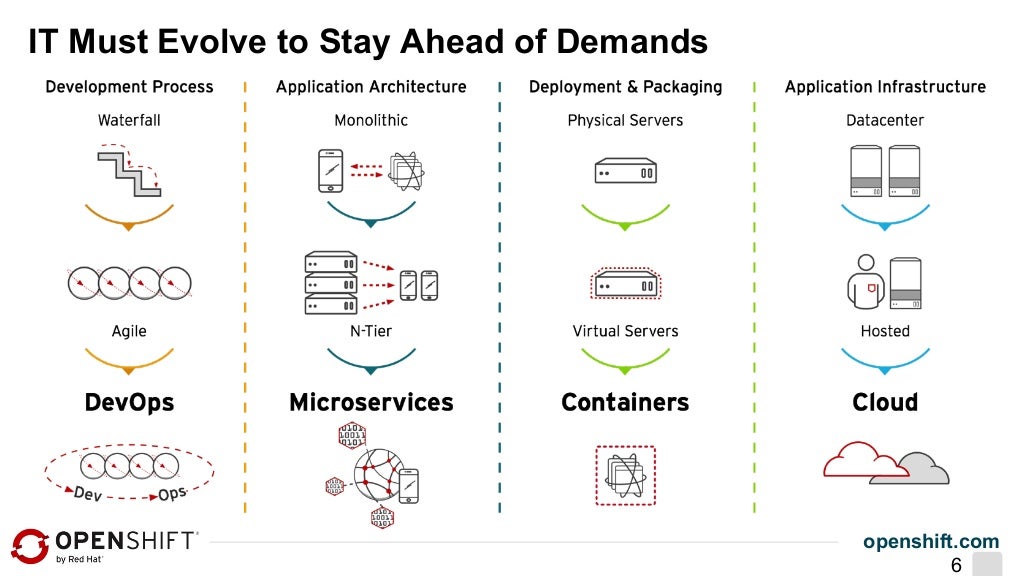
(Image from Red Hat OpenShift V3 Overview and Deep Dive)
As mentioned earlier, packaging source code and dependencies into containers simplifies resource provisioning, deployment, updates, and other operations, achieving You build it, you run it, reducing uncertain links between development and release
P.S. For more information about DevOps, please see The Past and Present of DevOps
3. Architecture and Concepts

A C/S architecture where the Client sends commands, and the Server (daemon) receives and executes corresponding operations, managing containers and images. The Server can be on the same physical machine as the Client or on another remote machine, communicating through REST API (either through UNIX socket for inter-process communication or through network for remote communication)
Docker Daemon
The daemon (dockerd) listens for Docker API requests and manages Docker objects, such as images, containers, networks, and volumes (a concept in the file system). Additionally, the daemon can communicate with other daemons to manage Docker services
Docker Client
The client (docker) is the primary way Docker users interact with Docker. For example, using the docker run command, the client sends these commands to dockerd for execution. One client can communicate with multiple daemons
Docker Registry
Similar to npm registry, Docker registry stores public Docker images, and images are looked up in Docker Hub by default
When executing docker pull or docker run commands, required images are fetched from the configured registry. docker push is used to publish local images to the configured registry
Additionally, unlike npm packages, public images remain at the image level (black box), rather than having open source code like npm packages. Therefore, Docker has also developed a paid ecosystem Docker Store, where you can directly buy a reliable module/application package and receive services like upgrade maintenance (image updates), which is very interesting
P.S. For example, Foopipes is a paid image
Docker Objects
Including images, containers, services, networks, volumes, plugins, etc. The ones you frequently interact with are images and containers
Images
An image is a read-only template with instructions for creating a Docker container
It has three characteristics:
-
Portable: Can be published to a registry or saved as a compressed file
-
Layered: Generating an image means adding layers. Besides the last few steps, most images can reduce disk usage by sharing parent layers
-
Static (read-only): Content is immutable unless a new image is created
Generally, new images are created by adding extra customizations on top of another image. For example, you can build an image based on the ubuntu image, install Apache and your own application, and specify the required Apache configuration items
Creating your own image requires creating a Dockerfile, defining the steps needed for its creation and operation through simple syntax. Each instruction in a Dockerfile creates a layer in the image. When modifying a Dockerfile and rebuilding the image, only the changed layers are built. Compared to other virtualization technologies, it's lighter and faster
Containers
A container is a runnable instance of an image
Containers also have three characteristics:
-
Runtime concept: The environment where a process runs
-
Mutable (writable): Essentially a form of ephemeral storage
-
Layered: The image is the "layer" of the container
You can create, start, stop, move, and delete containers through Docker API or CLI. Containers can be connected to multiple networks, have storage attached, and you can even create new images based on the current state of a container
A container is defined by its image and the configuration options given when creating and starting it. When a container is deleted, all its state changes that haven't been persisted are lost
For example:
docker run -i -t ubuntu /bin/bash
When executing this command, 6 things happen:
-
If there's no
ubuntuimage locally, pull it from the registry (same as manually executingdocker pull ubuntu) -
Create a new container (same as manually executing
docker create) -
Allocate a read-write file system to the container as the final layer, allowing the running container to operate on local files
-
Create a network interface and connect the container to the default network (if no network options are specified). This gives the container an IP address. By default, the container can connect to the external network through the host's network connection
-
Start the container and execute
/bin/bash. The container runs interactively (-i) and connects to a terminal (-t), after which you can type on the keyboard and record output to the terminal -
When you type
exitto terminate the/bin/bashcommand, the container will stop but not be deleted. You can restart it or delete it
Services
Services allow scaling containers across multiple Docker daemons, as if multiple managers and workers work together as a cluster. Each member in the cluster is a Docker daemon, and all daemons communicate through the Docker API. Services allow defining desired states, such as the number of service replicas that must be provided within a given time. By default, services are load-balanced across all worker nodes. To users, Docker services look like a single application
Underlying Technologies
Docker utilizes some Linux kernel features in its implementation:
-
Namespaces implement isolated workspaces (containers)
-
Control groups implement resource limits available to containers
-
Union file systems implement layers
-
Container format implements container management (a concept that comprehensively utilizes the above three features)
4. Examples
Environment
cat /etc/redhat-release
CentOS Linux release 7.3.1611 (Core)
Installation and Enablement
# Install
yum install docker
# Start
sudo service docker start
# Enable on boot
sudo chkconfig docker on
Trial
We'll create a new image based on the CentOS image:
# Get CentOS image
docker pull centos
# Confirm image exists
docker images centos
Normally, you'll get the following output, indicating the latest CentOS image exists locally:
REPOSITORY          TAG                 IMAGE ID            CREATED             SIZE
docker.io/centos    latest              3fa822599e10        3 weeks ago         203.5 MB
Run Docker container:
docker run -i -t centos /bin/bash
Do whatever you want in the newly created terminal (in the centos container environment):
# Install nvm
curl -o- https://raw.githubusercontent.com/creationix/nvm/v0.33.8/install.sh | bash
# Update environment variables
source ~/.bashrc
# Install node v4.6.2
nvm install 4.6.2
# Install global modules
npm install -g ionic @1.7.16
npm install -g cordova @6.2.0
# ... a bunch of intense operations
# Exit interactive terminal
exit
P.S. Why are the node version and global module versions fixed here? Because there's an old toy that can only run in this environment. Docker is very suitable for this scenario, otherwise it's difficult for others to run it in their local environment. Therefore, open source projects with special environment requirements might as well publish a Docker image or include a Dockerfile
Finally, create an image from the current state:
# Check the container ID of the changes just made
docker ps -a -q -l
# Commit changes and create a new image
docker commit 887a377fa369 ayqy/rsshelper
This creates a custom image ayqy/rsshelper based on the centos image locally:
# Check the newly generated image
docker images ayqy/rsshelper
# Enter the RSSHelper runtime environment with one command
docker run -it ayqy/rsshelper /bin/bash
# Verify the environment
node -v
# v4.6.2 correct
This is the most basic way to play around. In actual applications, it's more reasonable to create custom images through Dockerfile
Dockerfile
First, create one:
mkdir -p ~/projs/docker/rsshelper/
vi ~/projs/docker/rsshelper/Dockerfile
Edit content:
FROM centos:latest
MAINTAINER ayqy "nwujiajie @163.com"

ENV NODE_VERSION 4.6.2

RUN curl -o- https://raw.githubusercontent.com/creationix/nvm/v0.33.8/install.sh | bash \
&& source ~/.bashrc \
&& nvm install "$NODE_VERSION" \
&& nvm alias default "$NODE_VERSION" \
&& nvm use default \
&& nvm install -g ionic @1.7.16 cordova @6.2.0
Note:
-
The first line
FROMinstruction is essential, used to specify the source image, and the specified image must exist locally.FROMis equivalent todocker run -
The
RUNinstruction defaults to/bin/bash, and eachRUNstarts a new bash process. Therefore, to share environment variables, you need to use&&to connect them, rather than using multipleRUNinstructions
Create image:
docker build -t="ayqy/rsshelper_image" ~/projs/docker/rsshelper/
# Check the new image after creation completes
docker images ayqy/rsshelper_image
Note that if any command returns a non-zero value, the image will fail to build
P.S. For more information about Dockerfile, please see Quickly Master Dockerfile
Common Commands
# Pull specified image from registry
docker pull fedora
# Check local images
docker images
# Create image from Dockerfile, requires Dockerfile in current directory
docker build -t myimage .
# Run container interactively
docker run -it myimage
# Check recently running containers
docker ps -l
# Stop container running (find id from docker ps output)
docker kill <id>
# Delete container
docker rm <id>
P.S. See more Docker client commands through docker help
5. Application Scenarios
Container technology eliminates differences between local development environments and real production environments, helping to simplify ensuring CI/CD workflows:
-
Use containers to develop applications and manage dependencies
-
Use containers as the basic unit for release and testing
-
Deploy to production environments, regardless of what the production environment looks like (local data center, cloud provider, or a hybrid of both)
Several example application scenarios:
- Demo Sharing
Package development demos into containers and share them. Others can immediately run them in their local environment
- Automated Testing
Deploy applications from the development environment to the testing environment for manual/automated testing without worrying about environment differences
- Rapid Redeployment/Release
After fixing bugs in the development environment, redeploy to the testing environment for testing verification. After testing passes, deploy the latest image to the production environment
- Optimize Resource Utilization
Further improve resource utilization by limiting resource quotas for each application, or by using Docker containers instead of virtual machines
References
-
A beginners guide to Docker: Accurate and comprehensive introductory guide
-
Modernize Traditional Applications with Docker Enterprise Edition
No comments yet. Be the first to share your thoughts.