
Preface
Ionic is a framework for rapid cross-platform app development, with many highlights:
- Low learning curve
For front-end developers, the learning curve is not steep. If you've worked with Angular, there's almost no learning curve at all.
- Simple and easy to use
Powerful CLI, start->platform->serve->build->emulate->run, the full suite of services is completed via command line, no need to write configuration files, no need for F5.
- Many powerful components
Provides many powerful ready-to-use components, making it easy to implement popular interaction effects, such as pull-to-refresh (ion-refresher), pull-up loading/infinite scroll (ion-infinite-scroll), tabs (ion-tabs), side menu (ion-side-menu), etc. With just a little bit of code, you can implement these popular effects, which is much faster than native development.
- Supports Cordova plugins
Opening this door means we can use a large number of native features, such as calling the camera to take photos, responding to the back button, making phone calls, sending SMS and emails... all with just a few lines of code.
- Fast update speed
It was v1.1.0 on 2015/11/1, and now (2016/1/9) it's already v1.2.4. Fast updates mean someone is maintaining it, and bugs can be fixed quickly.
Of course, there are also defects, otherwise there wouldn't be this note, as follows:
- New versions are not fully backward compatible
Incompatibility is fine, but at least provide detailed documentation, right? There isn't any.
- Bugs are hard to locate
Angular+Cordova+Ionic+JavaScript, after discovering an issue, it's very difficult to determine where the problem lies.
- Performance optimization is difficult
Animations stutter, experience is worse on low-end devices, and optimization suggestions are usually to use fewer animations, fewer shadows, fewer gradients... but without them, it looks really ugly, and the experience is far from native apps.
- Others
Strange issues with no answers, scrolling through StackOverflow late at night...
1. JSONP Cross-Origin, How to Write PHP Service
P.S. This is an Angular issue. I didn't keep notes at the time, and later forgot about this problem.
Angular's $http can send JSONP requests, similar to jQuery, as follows:
// Request data
$http.jsonp(sUrl).success(function(res){
    // ...
}).error(function(err){
    // ...
});
sUrl has special requirements: it must include a callback parameter, and the parameter value can only be JSON_CALLBACK. From the Angular documentation:
Relative or absolute URL specifying the destination of the request. The name of the callback should be the string JSON_CALLBACK.
For example:
var sUrl = http://www.ayqy.net/app/rsshelper/index.php?callback=JSON_CALLBACK
But the question is: how to write the PHP service? Just return JSON data wrapped in JSON_CALLBACK()?
No, because the actual requested URL has callback !== JSON_CALLBACK, it's secretly (not documented) replaced by Angular. So the backend needs to be written like this:
<?php
if (strpos($_SERVER["REQUEST_URI"], 'callback')) {
    $res = json_encode($res);
    // echo $_SERVER["REQUEST_URI"];
    // /angular/test/http/main.php?callback=angular.callbacks._0
    // $res = 'JSON_CALLBACK('.$res.')';
    // Wrong
    $res = $_GET['callback'].'('.$res.')';
}
?>
Of course, this is for GET requests, which is relatively simple. For POST, you need to get callback through other means. The complete example is as follows:
<?php
// GET
if ($_SERVER['REQUEST_METHOD'] === 'GET') {
    $res = '{';

    // arg
    if (isset($_GET['arg'])) {
        $res .= '"arg": "'.$_GET['arg'].'", ';
    }
    // method
    if (strpos($_SERVER["REQUEST_URI"], 'callback')) {
        // echo $_SERVER["REQUEST_URI"];
        // /angular/test/http/main.php?callback=angular.callbacks._0
        $res .= '"arg": "'.$_GET['arg'].'", ';
        $res .= '"method": "jsonp"}';
        // $res = 'JSON_CALLBACK('.$res.')';
        // Wrong
        $res = $_GET['callback'].'('.$res.')';
    }
    else {
        $res .= '"method": "get"}';
    }

    echo $res;
}
// POST
else if ($_SERVER['REQUEST_METHOD'] === 'POST') {
    // Can't get it directly, because it's passed as a JSON string
    // echo $_POST['arg'];
    $jsonArg = file_get_contents('php://input');
    if (isset($jsonArg)) {
        echo substr($jsonArg, 0, strlen($jsonArg) - 1).', "method": "post"}';
    }
    else {
        echo '{"method": "post"}';
    }
}
?>
2. The Damping Bounce Effect of ion-content is Gone
Ionic v1.2 removed the default damping bounce effect of ion-content. With exactly the same code, there's no bounce effect. Later I found out it was due to the version update. After searching for a long time, I found the answer in the comments of the official blog:
Great news, thank you! It seems that the "has-bouncing='true'" does not work with the native scroll, is it correct? I managed though to have it again by going to back go js scroll (overflow-scroll="false")
I only checked in the browser so if any one can confirm that with native scrolling removes bouncing that would be great.
I need this feature for a custom 'pull refresh' method I had.
In other words, after v1.2, if you want the damping bounce effect, you need to do this:
<ion-content overflow-scroll="false" has-bouncing="true"></ion-content>
3. Data Sharing Between Multiple Views
This is about data sharing between multiple controllers (generally different views correspond to different controllers). Of course, the simplest method is to use global variables ($rootScope), but that's not good. A more reasonable approach is to write your own service or factory, provide data storage and retrieval interfaces, and inject dependencies where needed, for example:
.service('DataServ', ['$http', 'UIServ', function($http, UIServ) {
    // ...
    // Dictionary
    var oDir = {
        // key: value
    };

    function save(val) {
        var sKey = Date.now() + '';
        oDir[sKey] = val;
        return sKey;
    }

    function get(sKey) {
        return oDir[sKey];
    }

    return {
        // ...
        save: save,
        get: get
    };
}]);
Then pass sKey through the URL to achieve data sharing, very clean.
4. Notify View Updates
Data display is written in the template, but if the data hasn't arrived when the page opens, the template parsing is complete, and since there's no data to display, it shows a blank page. After a while, the data arrives, but the view doesn't update, still blank, for example:
<!-- html -->
<p ng-cloak>{{data}}</p>

// js
app.controller('MainCtrl', ['$scope', 'DataServ', function($scope, DataServ) {
    // ...
    setTimeout(function() {
        // ...
        $scope.data = 'data';
    })
}]);
Because the data assignment operation runs outside the controller scope, at this point you need to manually notify the view to update, as follows:
// ...
$scope.data = 'data';
$scope.$apply();
Of course, generally you don't need to manually notify, even for asynchronously returned data, because this is only related to the scope. In short, if you find the view needs manual updating, just add $apply.
5. How to Get Content in content:encoded with PHP Native XML Extension
In RSS format, there will be a <content:encoded> tag. You can't get content directly; you need a special method:
$content = (string)$item->children("content", true);
// $encodedContent = $content->encoded;
// $content->encoded returns escaped HTML, such as converting & to &, generally used for <pre> display
Of course, this problem only occurs when using the native XML extension ($xml = simplexml_load_file($url);) to parse XML. For more usage, please check php - How to parse CDATA HTML-content of XML using SimpleXML? - Stack Overflow
6. Open External Pages in Browser
You need to use a Cordova plugin. cd into the project folder, then:
ionic plugin add cordova-plugin-inappbrowser
After installation, you can call it without modifying configuration files or importing other JS, as follows:
// openInBrowser
window.open('http://example.com', '_system');   Loads in the system browser
window.open('http://example.com', '_blank');    Loads in the InAppBrowser
window.open('http://example.com', '_blank', 'location=no'); Loads in the InAppBrowser with no location bar
window.open('http://example.com', '_self'); Loads in the Cordova web view
// test
window.open(url, '_system'); // System default browser
// window.open(url, '_blank');  // Ugly Android built-in browser
// window.open(url, '_self');  // Same as above
Generally use _system, the other two are really ugly. For more content, please check Cordova InAppBrowser Plugin Example using ionic framework
7. Splash Screen Black/White Screen
P.S. Black screen and white screen are actually the same issue, but this problem is quite difficult to solve. I spent almost a full day fixing it.
Ionic integrates the splashscreen plugin by default. This Cordova plugin's effect is not very perfect. The default configuration only shows the splash screen when opening the app for the first time, but the actual effect is:
When the app starts the splash screen shows for a few seconds as expected, and then the screen goes black for @1 second and then white for @2 seconds and then the main app page appears.
Is there any way to prevent the black and white pages appearing? I read somewhere that a black page appears when there is no splash page but I do have a splash page and it appears fine.
I found this problem description on StackOverflow, which is very accurate, but relying solely on the answers below the question cannot solve the white screen issue; you also need to modify the configuration file.
The initial phenomenon discovered was a black screen (replace "white" in the English description above with black). Later I found the cause: the main view container ion-nav-view is empty, and its background color is #000, so the fix is to stuff an ion-view inside:
<!-- Content -->
<ion-nav-view>
    <!-- Prevent black screen on startup -->
    <ion-view></ion-view>
</ion-nav-view>
Or add CSS to change the background color of ion-nav-view to white. But the problem isn't solved yet; the black screen problem becomes a white screen problem. The solution is relatively troublesome.
- Downgrade the splashscreen plugin to v2.0.0
Versions after v2.0.0 have bugs. Currently (2016/1/9) the included version is v3.0.0. First cd to the project folder, then command line:
    // Remove existing version
    cordova plugin rm cordova-plugin-inappbrowser
    // Install v2.0.0
    cordova plugin add cordova-plugin-inappbrowser
2. Modify configuration file MyApp/config.xml
    <preference name="SplashScreen" value="screen"/>
    <preference name="AutoHideSplashScreen" value="false"/>
    <preference name="auto-hide-splash-screen" value="false"/>
    <preference name="ShowSplashScreenSpinner" value="false"/>
    <preference name="SplashMaintainAspectRatio" value="true" />
    <preference name="SplashShowOnlyFirstTime" value="false"/>
    <preference name="SplashScreenDelay" value="10000"/>
Cancel auto-hide (change to code-controlled hide), change the duration to a larger value (10 seconds), set to show splash screen every time the app opens.
P.S. By default, only SplashScreen and SplashScreenDelay exist; you need to add the others (SplashMaintainAspectRatio is optional).
- Modify app.js
Manually hide the splash screen, add inside run:
    .run(['$rootScope', function($rootScope) {
            // init
            // $rootScope.isLoading = false;

            // hide splash immediately
            if(navigator && navigator.splashscreen) {
                navigator.splashscreen.hide();
            }
        });
    }])
That's it, don't call hide with a delay, otherwise the white screen will still appear (some solutions suggest $timeout 50 milliseconds to hide, which will still show white screen, don't do this).
The most frustrating issue is over. It seems like a simple feature, but having perfect native experience is very difficult. Strange issues are hard to solve, and current feasible solutions may not work after some time. You can check White page showing after splash screen before app load to get a feel for it.
8. Android Version Signature Release
Various signing methods are outdated. Currently (2016/1/9) the usable signing method is as follows:
- Create keystore in MyApp\platforms\android
For specific steps, please check: Ionic toturial for building a release.apk
- Create release-signing.properties file
For specific steps, please check: How to automatically sign your Android apk using Ionic framework and Crosswalk
- Build
cd to the project folder, then command line ionic build --release android. After success, 2 things will be generated under MyApp\platforms\android\build\outputs\apk: android-armv7-release.apk and android-x86-release.apk. Generally tablets and PCs use x86, phones use armv7. If uploading to Google Play, you need to upload both; there's automatic recognition during download.
As for Crosswalk, it provides the Chrome kernel and can make low-end devices support advanced features, but it will make the APK much larger (3.5M->23M). After adding Crosswalk, it feels... well, slower, but to support low-end device users, most people add Crosswalk.
9. Summary
How to put it, rapid development is awesome, but the aftermath is painful.
I started working on it on January 3rd, and released v1.0.0 on the morning of January 8th. Here are the screenshots:
[caption id="attachment_933" align="alignnone" width="625"]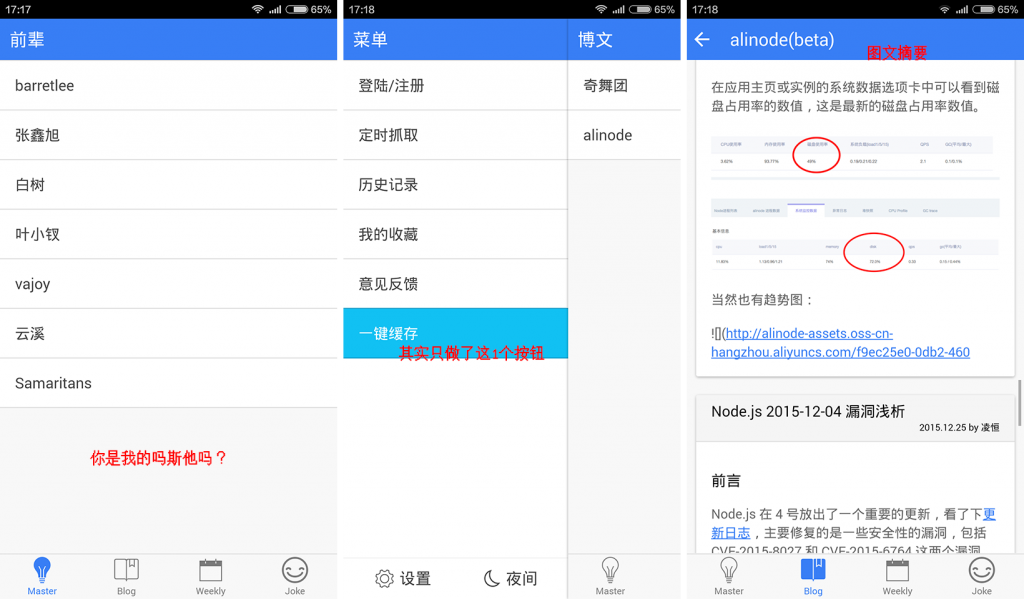 rsshelper[/caption]
[caption id="attachment_934" align="alignnone" width="625"]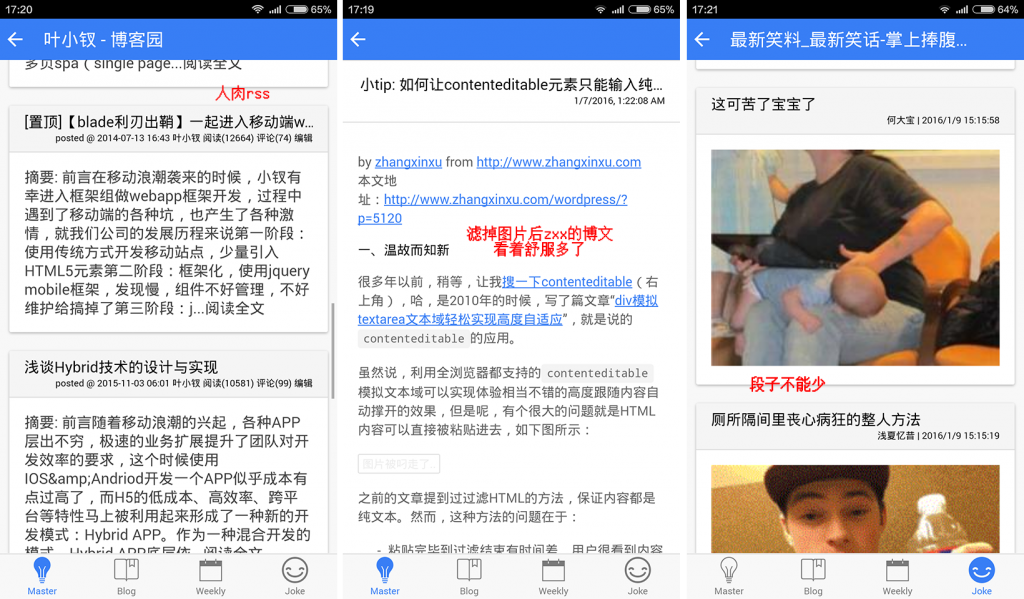 rsshelper[/caption]
Looks pretty good, right? Not for sale, not giving it away~
No comments yet. Be the first to share your thoughts.