
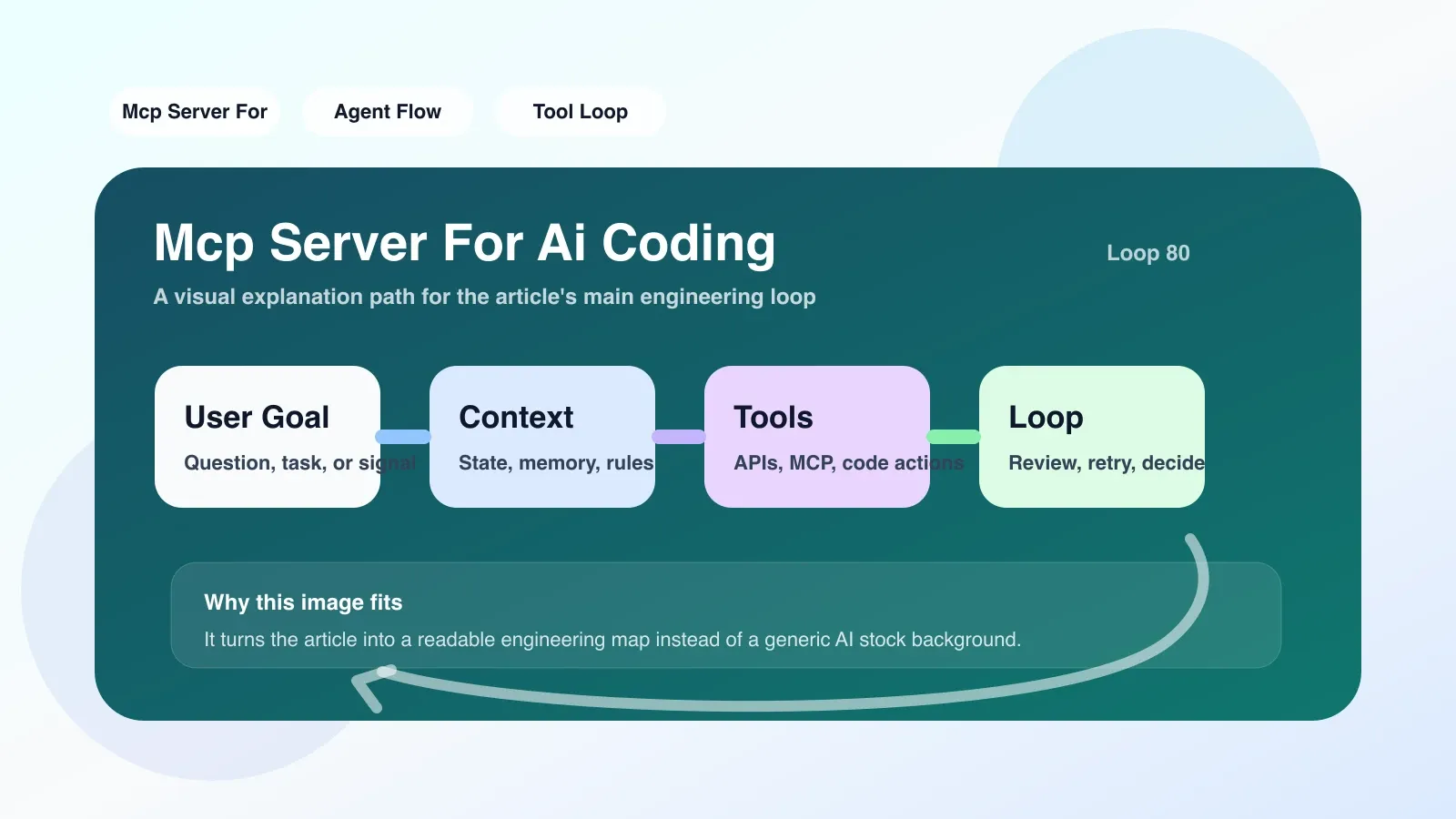
MCP What is Server? What role does it play in the Agent workflow?
MCP (Model Context Protocol) Server is not a separate microservice, but AI encodes a standardized communication layer between the Agent and external tools (Git, file systems, databases, CLI commands, etc.). When you start an Agent and say "help me refactor this module and run the tests", the Agent itself does not have the ability to directly perform git push or npm test - it requires the MCP Server to proxy these operations.
In a typical Agent workflow, MCP Server assumes three responsibilities:
- Capability Registration: Tell the Agent which tools are provided by the current environment (such as read_file, write_file, run_command, search_web) and the input and output parameter formats of each tool.
- Security Sandbox: Tool calling requests sent by the Agent will first go through MCP Server permission verification. For example, only specific directories are allowed to be read, and high-risk commands are prohibited from being executed.
- Result echo: The output after tool execution (file content, command stdout/stderr, return error) will be formatted into a structured message so that the Agent can understand and continue to make decisions.
Key steps to build MCP Server
1. Select protocol implementation and language
Currently, the mainstream solutions include the official TypeScript SDK and the community-maintained Python SDK. If your AI coding environment is the Node.js ecosystem (such as Cursor, Continue), it is recommended to use the TypeScript version; if it is a Python-first Agent framework (such as LangChain, AutoGPT), it is more troublesome to use the Python version.
Practical path:
- Use template after initializing project:
npm create mcp-server@latest my-serverorpip install mcp-server. - Core code structure: implement a
Toolcollection, each Tool contains name, schema (JSON Schema), and execution function (async).
2. Define tool and permission boundaries
This is where things go wrong the most. A common mistake is to give the agent "write any file" or "run any shell" permissions. A reasonable boundary is:
- Only the files in the current project directory are exposed for reading and writing, and access to
/etc,/rootis prohibited. - Only allow running whitelisted commands such as
npm run build,python test.py, notrm -rf /. - Require user confirmation for sensitive operations (such as deleting files).
Real scenario: A team opened the run_command tool without filtering, and the Agent automatically executed git push --force after generating the code, covering the submissions of colleagues. This is the result of permission boundaries not being set clearly.
3. Integrate with Agent framework
Different Agent frameworks connect to MCP Server in different ways. Taking Continue as an example, configure the MCP Server endpoint (usually the localhost port) in ~/.continue/config.json and declare the tool list. Then you select a piece of code in the IDE and enter the command "Add Error Handling". The Agent will read the file through the MCP Server, generate the code, and then write back the file.
Easy to fail: If the MCP Server's response times out (default 30 seconds), the Agent will get stuck or generate incomplete results. It is recommended to split long-running tasks (such as installing dependencies) into asynchronous steps, or to increase the timeout configuration.
Common misunderstandings and solutions
Misunderstanding 1: Throw all the tools to the Agent
Some developers want to save trouble and register 30 tools at once. As a result, the Agent frequently makes errors when selecting tools (selecting wrong parameters and calling in the wrong order). A better approach is to expose only the tools required for the current task, and explain the order in which the tools are used in the prompt. For example, the refactoring task only exposes three tools read_file, write_file, and run_test.
Misunderstanding 2: Ignoring error handling
MCP The tool execution in the Server may fail (the file does not exist, the network is unavailable). If a structured error message (such as { status: "error", message: "File not found" }) is not returned in the Tool implementation, the Agent may mistakenly believe that the operation is successful, causing subsequent logic to crash. Every tool should catch exceptions and return an explicit error object.
Misunderstanding 3: Use the default configuration directly in the production environment
The default MCP Server configuration is generally development-friendly with open permissions. Before using it online you must:
- Close all unnecessary tools (e.g.
delete_file,execute_sys_command). - Set
allowed_pathsandblocked_commands. - Enable audit logging to record all tool calls made by the Agent.
Fallback plan in case of failure
If MCP Server continues to be unstable or you find that the Agent's workflow has security risks, you can temporarily fall back to "Manual Tools" mode:
- Let Agent only output shell commands, and you can copy and execute them manually.
- Or use a more lightweight solution such as
codex,inline assistantwhich only does code generation, not automatic execution.
This is not a step back, many production-level AI coding processes still use a hybrid model of "agent suggestion + manual approval".
What to do next
You should now try to build a MCP Server locally, starting with the simplest "File Viewer", first allowing the Agent to correctly read the file content, and then gradually add writing operations and command execution. Every time a tool is added, concurrent requests and failure scenarios are simulated to ensure that errors can be understood by the Agent.
If you want the system to master AI programming workflow design, quality control and security protection, it is recommended to study the more complete Agent architecture and evaluation system in depth.
No comments yet. Be the first to share your thoughts.