
I. JSON IntelliSense
VS Code is capable of providing suggestions and validation for JSON:
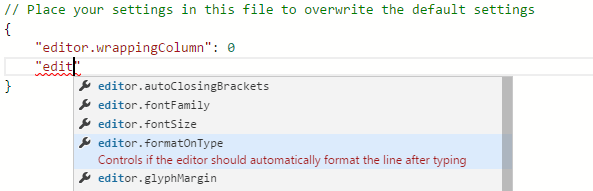
This is especially useful when editing lengthy configuration files. By default, it supports common JSON configurations such as package.json and tsconfig.json.
For custom and specialized JSON protocols, support can be extended through JSON Schema.
II. JSON Schema
To provide IntelliSense (or validation) for JSON, you first need metadata that clearly defines the structure, fields, values, and meanings of the JSON.
In VS Code, this metadata is described using JSON Schema:
To understand the structure of JSON files, we use JSON schemas. JSON schemas describe the shape of the JSON file, as well as value sets, default values, and descriptions.
P.S. VS Code currently (2020/5/16) supports the latest JSON Schema Draft 7 specification.
As for JSON Schema itself, it is a JSON-based format used to define the structure of JSON data:
JSON Schema specifies a JSON-based format to define the structure of JSON data for validation, documentation, and interaction control.
(Excerpt from JSON Schema)
For example, person.json:
{
  "first_name": "George",
  "last_name": "Washington",
  "birthday": "1732-02-22",
  "address": {
    "street_address": "3200 Mount Vernon Memorial Highway",
    "city": "Mount Vernon",
    "state": "Virginia",
    "country": "United States"
  }
}
The corresponding JSON Schema would be (person.schema.json):
{
  "type": "object",
  "properties": {
    "first_name": { "type": "string" },
    "last_name": { "type": "string" },
    "birthday": { "type": "string", "format": "date" },
    "address": {
      "type": "object",
      "properties": {
        "street_address": { "type": "string" },
        "city": { "type": "string" },
        "state": { "type": "string" },
        "country": { "type" : "string" }
      }
    }
  }
}
The above example looks like a type declaration for JSON. In fact, besides type information, it can also carry values, descriptions, and more:
{
  "type": "string",
  "pattern": "^(\\([0-9]{3}\\))?[0-9]{3}-[0-9]{4}$",
  "title": "telephone number",
  "description": "a simple North American telephone number with an optional area code"
}
P.S. For detailed information about JSON Schema, see Understanding JSON Schema.
III. Extending Custom JSON Suggestions
Since VS Code's JSON IntelliSense capability is based on JSON Schema, supporting custom JSON formats is quite easy:
-
First, create (manually write or generate) a JSON Schema to prepare the metadata required for suggestions/validation.
-
Then, establish an association with the target JSON files so that VS Code can find the corresponding suggestion information (JSON Schema) when opening specific JSON files.
Generating JSON Schema
For simple JSON data that isn't updated frequently, manual writing of the JSON Schema is sufficient. However, for complex, lengthy, or frequently updated JSON data, generating it through tools is usually a better choice:
-
JSON to JSON Schema: Recommended JSON Schema Tool (not open source, but integrates conversion and editing with comprehensive features, supporting draft-07) or to-json-schema (open source, only supports conversion, used with other JSON Schema editors).
-
Editing JSON Schema: Recommended JSON-Schema-Editor visual editor.
-
JSON Schema Syntax Validation: JSON Schema Validator.
After generating the JSON Schema correctly, simply establish the association with your JSON files in VS Code.
Establishing Associations with JSON Files
There are 3 ways to associate a JSON Schema with JSON files:
-
User side: Configure the mapping relationship through the
json.schemasoption in User Settings. -
Data side: Add a
$schemafield to the JSON data pointing to the JSON Schema. -
Third party: Configure the mapping relationship through the
jsonValidationcontribution point.
json.schemas
"json.schemas": [
  {
    "fileMatch": [
      "/.babelrc"
    ],
    "url": "http://json.schemastore.org/babelrc"
  }
]
P.S. JSON Schema Store provides JSON Schemas for over 200 common configuration files.
This configuration applies the JSON Schema pointed to by url to all JSON files named .babelrc. The url can also be a relative path to a local file, such as "url": "./myschema.json", which refers to myschema.json in the current workspace root directory.
Alternatively, you can write the JSON Schema directly within the settings:
"json.schemas": [
  {
    "fileMatch": [
      "/.myconfig"
    ],
    "schema": {
      "type": "object",
      "properties": {
        "name": {
          "type": "string",
          "description": "The name of the entry"
        }
      }
    }
  }
]
User settings are easy to use and do not affect the JSON data itself. However, the downside is that local settings are not shared, so everyone has to configure them individually, making it unsuitable for multi-person collaboration. Furthermore, some special scenarios cannot be described through fileMatch rules. In such cases, consider $schema.
P.S. Note that if the JSON data file does not have a .json extension, you also need to configure files.associations to treat the file content as JSON (since JSON Schema configuration only applies to JSON):
"files.associations": {
  ".babelrc": "json"
}
For details, see Adding a file extension to a language.
$schema
{
  "$schema": "http://json.schemastore.org/coffeelint",
  "line_endings": "unix"
}
By including the corresponding JSON Schema directly within the JSON data (via the special $schema field), you can ensure a specific association. However, the disadvantage is that it "pollutes" the JSON data, as all consumers must handle the $schema field specially. Moreover, it is not suitable when the data side is not under control—for instance, if the JSON data is provided by a third party, adding a field might be impossible.
The advantage lies in being able to establish precise one-to-one mappings, satisfying scenarios difficult to describe through mapping rules, such as when a custom JSON file is also named package.json or when the JSON filename is not fixed. (For details, see support setting schema associations at runtime. More flexible and non-intrusive ways to associate JSON Schemas may be provided in the future.)
jsonValidation
{
  "contributes": {
    "jsonValidation": [
      {
        "fileMatch": ".jshintrc",
        "url": "http://json.schemastore.org/jshintrc"
      }
    ]
  }
}
Similar to the json.schemas user setting, but the mapping relationship is centralized in the extension's package.json. This solves the issue of sharing configurations, though the limitations in mapping rule descriptions remain.
P.S. jsonValidation only supports introducing a JSON Schema via url and does not support writing the schema directly.
IV. Auto-completion
The default field in the JSON Schema specification can be used for JSON auto-completion (supported by VS Code by default), which satisfies most general cases. For more complex completion suggestions, you can use the extension field defaultSnippets:
{
  "type": "array",
  "title": "Keybindings configuration",
  "items": {
    "type": "object",
    "required": ["key"],
    "defaultSnippets": [
      {
        "label": "New keybinding",
        "description": "Binds a key to a command for a given state",
        "body": { "key": "$1", "command": "$2", "when": "$3" }
      }
    ],
    "properties": {
      "key": {
        "type": "string"
      }
    }
  }
}
The syntax of body in defaultSnippets is the same as Snippets, supporting cursor control, placeholders, and predefined constants (current filename, date, etc.).
P.S. defaultSnippets is not part of the JSON Schema specification but is a custom field extended by VS Code to enhance JSON completion capabilities (the JSON Schema specification allows for extensions, ignoring unknown fields).
No comments yet. Be the first to share your thoughts.