
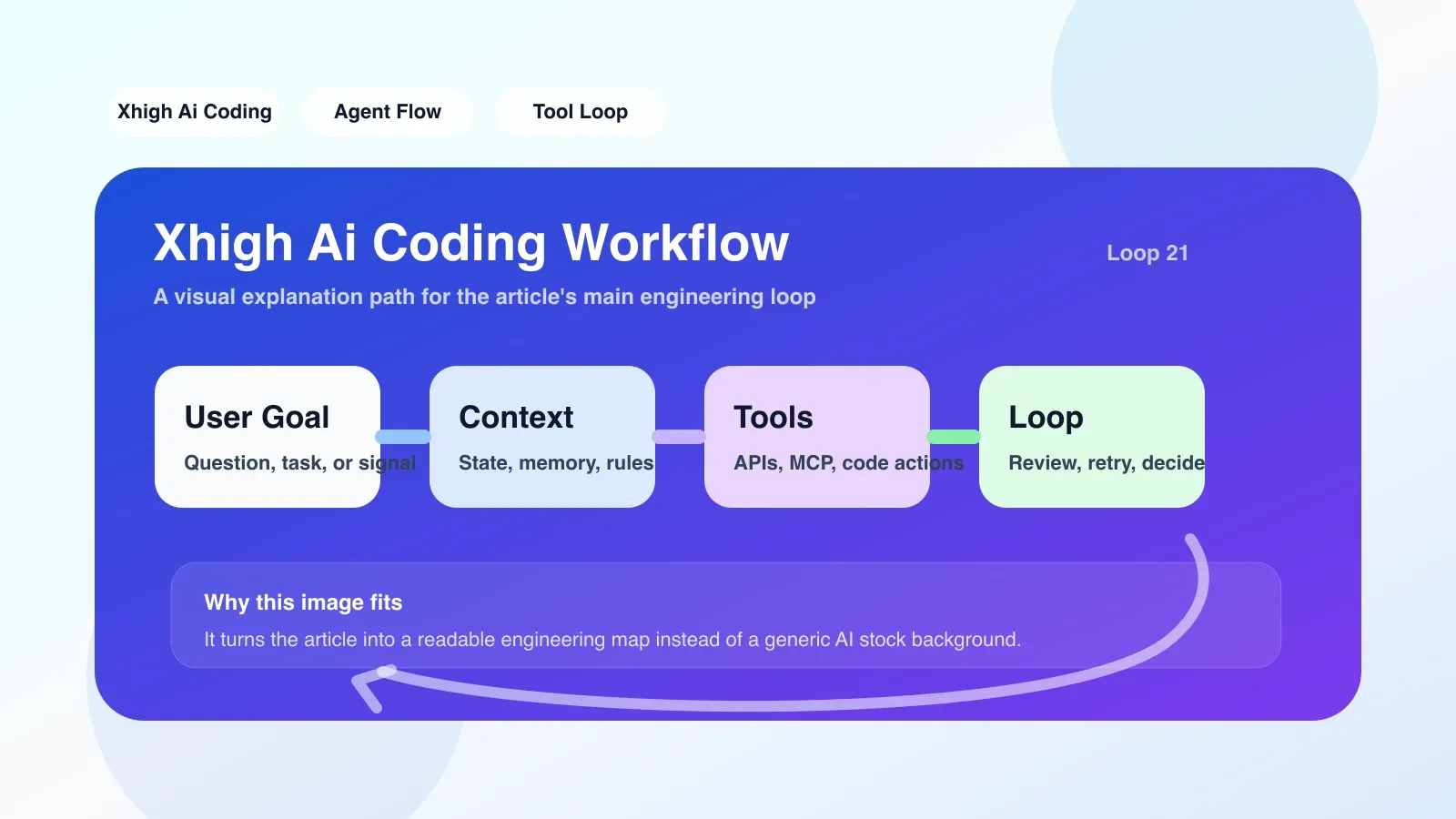
Confused: Why does other people's Xhigh workflow run smoothly, but yours always gets stuck on the first step?
You have most likely encountered this scenario: after typing xhigh init in the terminal, you see a bunch of configuration options and don’t know whether to choose --real-time or --batch; or you have finally finished the configuration, but code completion always conflicts with your engineering style, and half of the generated content is usable and half needs major changes. Xhigh is an emerging AI coding collaboration tool that promises to make your development process smoother, but only if you understand how it works and under what conditions it will really help you.
Core Mechanism: How does Xhigh take over your coding process?
At its core, Xhigh is “context-aware real-time code suggestions.” It works by embedding a lightweight agent in your editor and terminal, continuously reading your current file buffer, code near the cursor, error logs and recently executed commands, and then combining it with project-level indexes (dependencies, type definitions, call graphs) to generate suggestions. Different from traditional code completion, Xhigh's agent can actively execute check commands in the terminal (such as npm test scope to the current module), and bring the error output directly back to the editor context, forming a closed loop.
But there's a line here: Xhigh's effectiveness heavily depends on your project structure and toolchain. If your project mixes multiple languages, has a complex monorepo configuration, or your CI process uses custom scripts, Xhigh's index may not be able to correctly parse the dependency graph, resulting in context fragmentation and a drastic drop in recommendation quality.
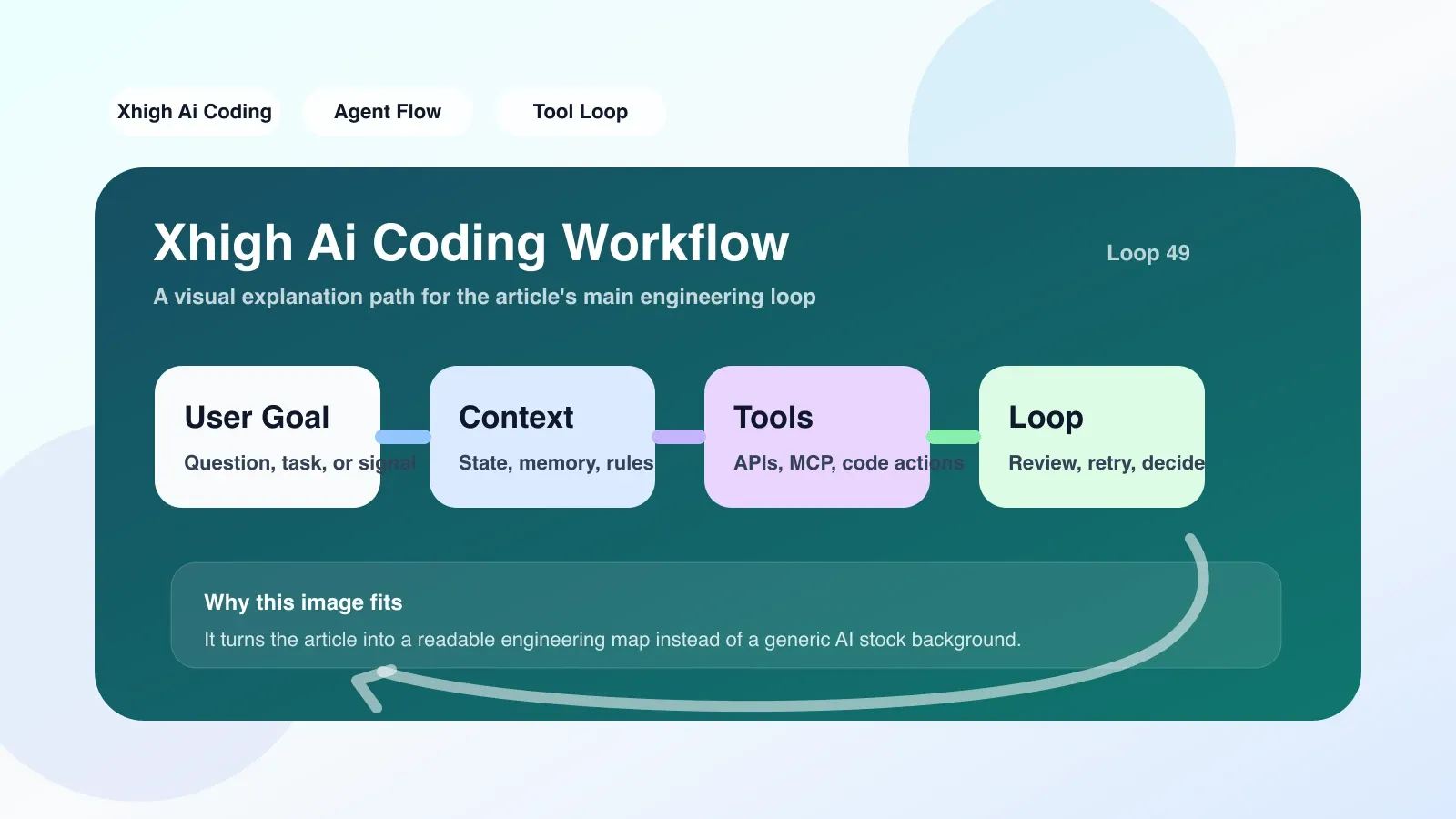
Practical Action: An Executable Migration Checklist
Let's say you want to migrate a medium-sized TypeScript backend project to an Xhigh workflow. The following are not steps for you to copy, but the trade-offs behind each step.
- Analyze your project topology. Run
xhigh diagnoseto see if xhigh recognizes all workspaces. If the package boundaries of the monorepo do not match the actual ones, you need to manually declareworkspacesin.xhigh/config. This step is the most error-prone: many people skip diagnosis and go straight to configuration, and as a result can only get the context of a part of the code. - Determine the interaction mode. In personal development,
--real-time(real-time streaming suggestions) allows you to continuously get feedback while editing, but in complex refactoring scenarios,--batch(batch inspection) is more suitable: you write all the changes first, and then let Xhigh scan the entire diff and generate optimization suggestions. To switch modes, precede the command withxhigh --mode batch. If you use real-time mode when refactoring, you will often be interrupted. - Establish a "trust threshold". You cannot accept all the suggestions given by Xhigh by default. My approach is: if the suggestion is less than 3 lines and has the same semantics as the current cursor line, accept it directly; if it exceeds 3 lines or involves renaming global variables, be sure to preview the changes using
xhigh diff --previewin the nearby terminal before deciding whether to merge. This habit will save you from erroneous merges. - Integrated into CI pre-check. Run
xhigh check --stagedbefore committing to automatically verify that the code in the staging area does not conflict with the database schema or API interface changes. But if Xhigh is not installed on your CI machine, this step will be skipped, causing some checks to be missed. So you need to make sure that the Xhigh CLI is pre-installed in the CI Docker image.
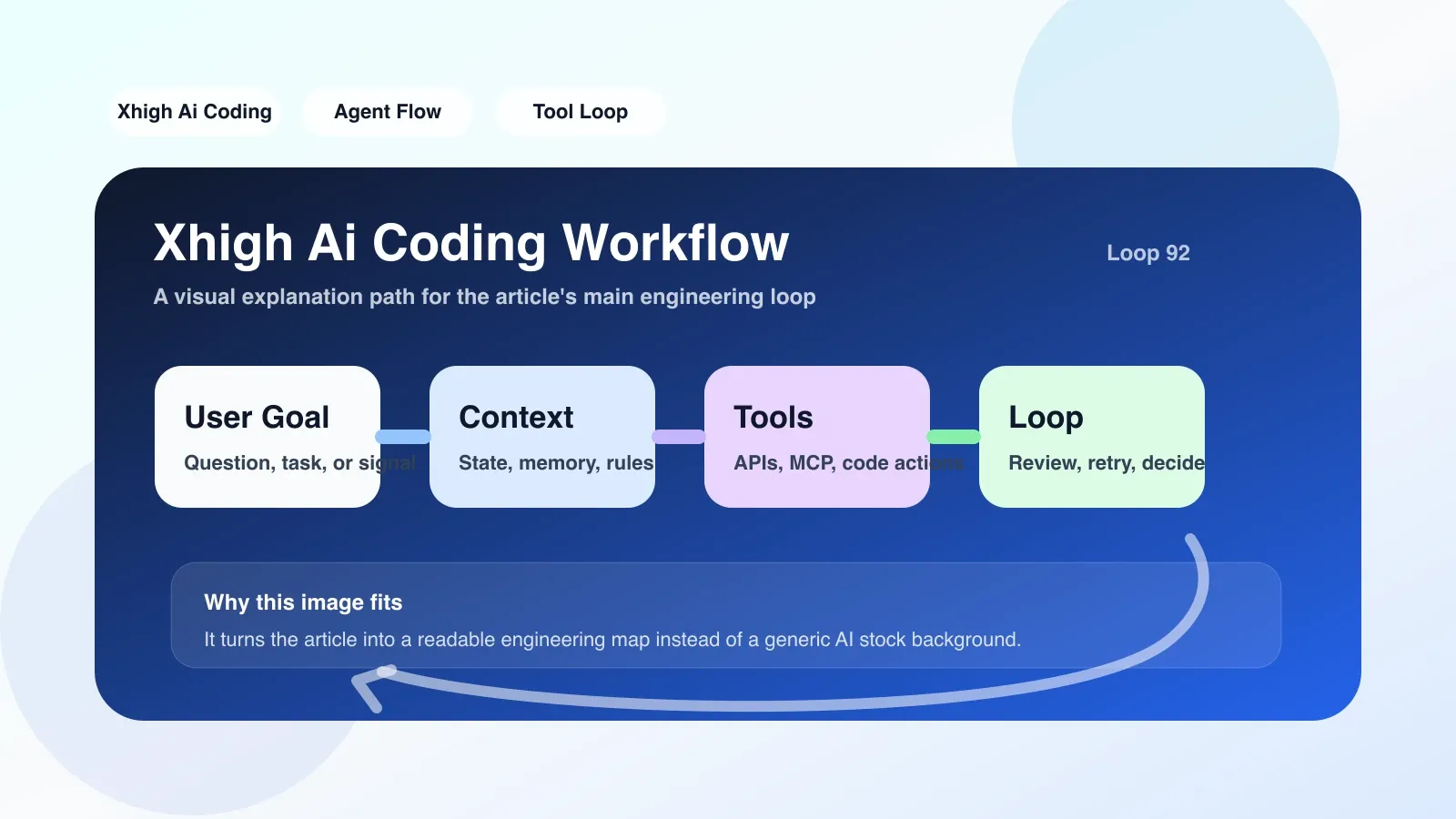
The easiest pitfall: context pollution and agent conflict
The most common mistake I've seen is to open multiple editors and terminal windows at the same time. Xhigh's agent will try to merge the context of each window into the same representation, resulting in "phantom suggestions" - for example, when writing front-end components, the agent references the variable name of the back-end module. The way to avoid this is to have the xhigh agent of only one terminal window active in each session, and use xhigh pause to suspend other windows.
Another common failure point is excessive permissions. The developer conveniently granted Xhigh terminal execution permissions (--allow-exec). As a result, the agent automatically ran dangerous commands during the inspection process (such as rm -rf node_modules - I have personally stepped on this). The solution is not to use the --allow-exec wildcard, but whitelist one by one: --allow-cmd="npm test,git diff".
Backup plan: When Xhigh isn’t right for you
If the test coverage of your project changes greatly after each submission, Xhigh's caching mechanism will become invalid, and it is recommended to fall back to the traditional workflow frequently. Or if you are in an intranet environment with strict restrictions on third-party tools and cannot connect to Xhigh's remote indexing service, then you can only use local mode (--offline), but at this time it essentially degrades into an ordinary code completion tool.
Another situation is that in team collaboration, the version of Xhigh used by everyone is inconsistent, causing the project configuration file to be automatically rewritten by different versions of CLI. In this case the Xhigh version should be locked in devDependencies of package.json and npx xhigh should be used instead of calling the global binary directly.
Next step: From being able to use it to using it well
Setting up Xhigh is only the first step. What really makes the workflow valuable is how you design prompt templates, define custom evaluators, and establish team-level adoption norms. If you find that you spend too much time debugging agent suggestions instead of enjoying the speed-up brought by AI assistance, you need a more systematic approach.
No comments yet. Be the first to share your thoughts.